

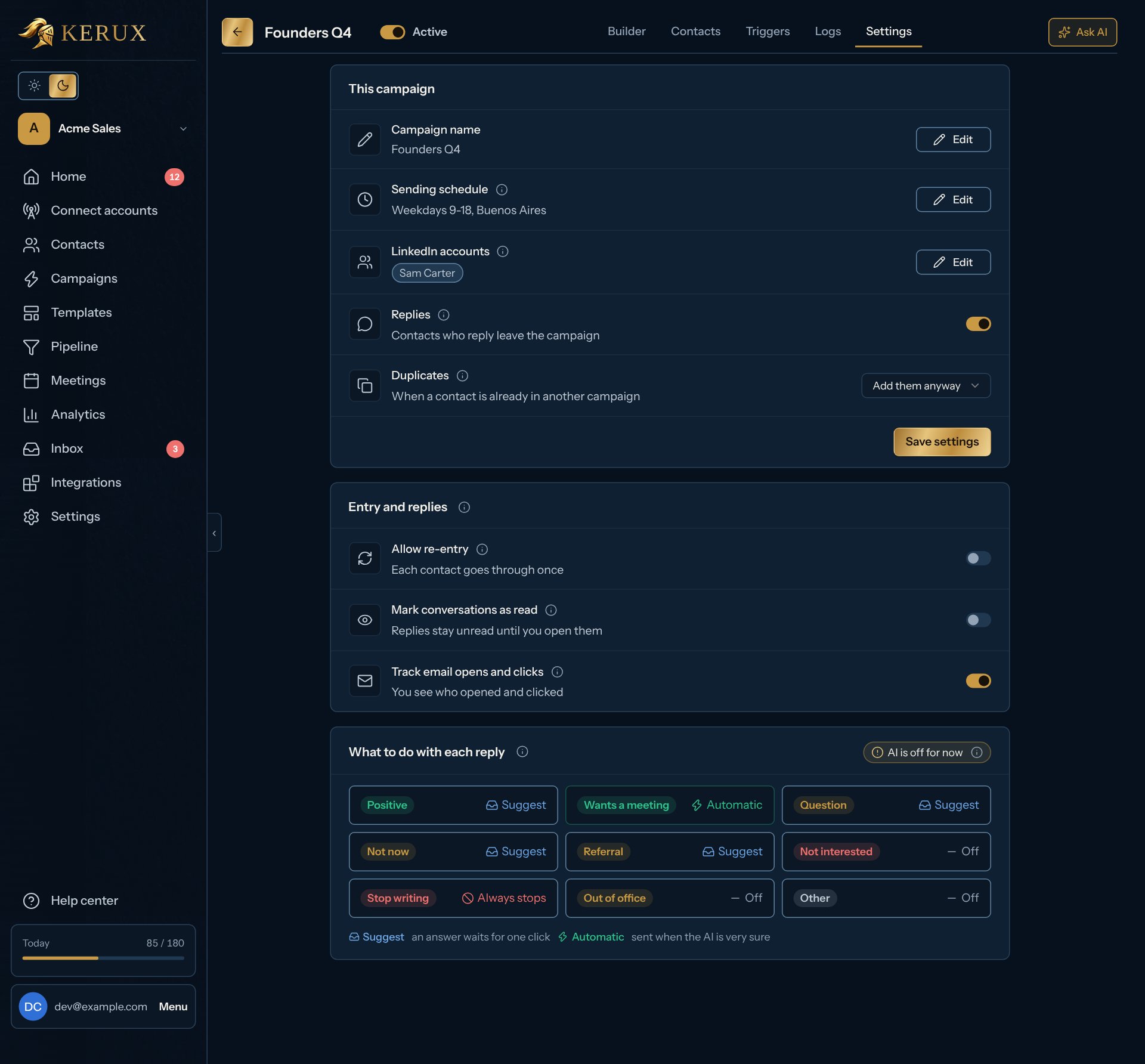
Re-entry, step by step
1
Turn it on
Open the campaign, click Settings and turn on the Allow re-entry switch under Entry and replies. Its line then reads “Again after 1 day”.
2
Choose the minimum gap
Type a number and pick Hours or Days. A contact can’t start again sooner than that after their last run started.
3
Watch every run
In the Contacts tab, each run is its own row (“run 1”, “run 2”) with its own journey. A contact is never in the campaign twice at the same time.
The sending days and hours (Sending schedule) are the campaign’s own window: LinkedIn steps outside it wait, and the contact shows “Outside working hours, until…” with the time it continues. A campaign without its own time zone uses the workspace’s (Settings > General > Time zone).
Daily limits and the pause between actions belong to each LinkedIn account, not to the campaign, because several campaigns can share one account. See Limits and warm-up.