

1
Take the photo
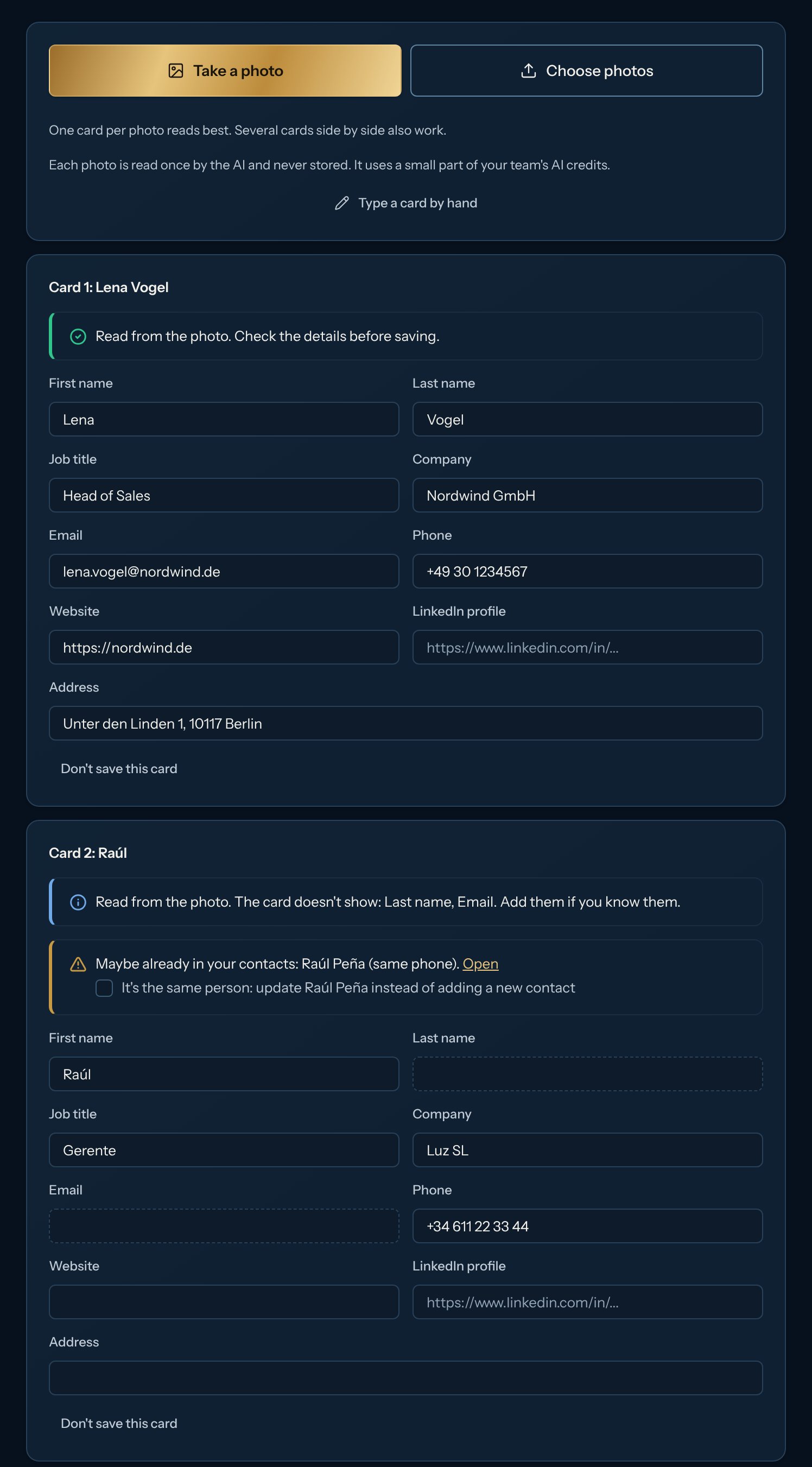
Open Contacts > Database and tap Scan business card (at the top, next to Import). Tap Take a photo to open your phone’s camera, or Choose photos to pick one or several photos (on a computer too). One card per photo reads best; several cards side by side in one photo also work (up to 10), each becomes its own card to check. No photo? Click Type a card by hand.
2
Check every card
Each card opens as a form with what the AI read. Fix anything that’s wrong and fill in what’s missing: Kerux says plainly which details the card didn’t show (for example, no email). Nothing is saved until you click Save. If a card isn’t worth keeping, click Don’t save this card.
3
Choose where they go
Under Where to save them, pick a list in Add to a list (or New list, for example “Expo Madrid 2026”) and, if you want, a campaign in Add to a campaign. Click Save (for example Save 3 contacts). Each person shows Business card as their source, and their timeline says they were scanned from a card.
People already in your contacts
Kerux checks every card against your contacts, the same way imports do:- Same LinkedIn profile or same email: it’s the same person. Saving adds only what they don’t have yet (a phone, a job title, an address…) and never overwrites what they already had.
- Same phone, or same name and company: it’s probably the same person. Kerux shows who, with a link to open them. Tick It’s the same person: update … instead of adding a new contact (with their name) to fill in what they don’t have yet instead of adding a new contact.
What gets saved
Name, job title, company, email, phone and address go in the contact’s own fields (the address in Address, used in messages as{{contact.address}}). The website goes in the custom field Website ({{contact.custom.website}}). A card without a LinkedIn profile is saved anyway: email, WhatsApp and other steps work right away, and LinkedIn steps wait until you add the profile to the contact (they continue by themselves then).
In a campaign that isn’t launched yet, the people wait and start when you launch it.
Privacy and AI credits
The photo is shrunk on your phone, read once by the AI and never stored. Only what you save stays in Kerux, in your workspace. Each photo uses a small part of your team’s monthly AI credits (about a quarter of a credit). Text printed on a card is only copied into the form, never followed as an instruction.When the AI can’t read a card
You always get the form, so you can type the card in:We couldn't read this photo
We couldn't read this photo
The photo isn’t a business card, or it’s too blurry, dark or cut off. Type the details, or take the photo again with the card flat, filling the frame, in good light.
Your team used this month's AI credits
Your team used this month's AI credits
The card wasn’t read. Type the details; the credits start again on the 1st of next month. See Plans and billing.
The AI isn't available right now, or couldn't read it this time
The AI isn't available right now, or couldn't read it this time
Type the details, or try the photo again in a minute.
Too many photos in one minute
Too many photos in one minute
One person can scan up to 30 photos a minute. Type the details, or try that photo again in a minute.
This file isn't a photo we can read
This file isn't a photo we can read
Use a JPG or PNG photo, or take the photo again.
I reloaded the page before saving
I reloaded the page before saving
The cards you hadn’t saved are kept in that browser tab for 30 minutes (the photos are not). Open Scan business card again to find them.
With the API
POST /v1/business-cards/scan reads a photo (base64) into draft contacts without saving anything, and POST /v1/business-cards saves one reviewed card. See API.