

Connect an account
1
Open Connect accounts
Click Connect accounts in the left menu, then Connect LinkedIn account.
2
Pick a way to sign in
- Email, password and 2FA key (recommended): if LinkedIn logs the account out, Kerux signs it back in by itself.
- Email and password: type your LinkedIn login. If LinkedIn asks for a code, Kerux asks you for it too.
- Browser session: use the LinkedIn you already have open, with the Chrome extension or your session cookie. You don’t type your password.
3
Finish
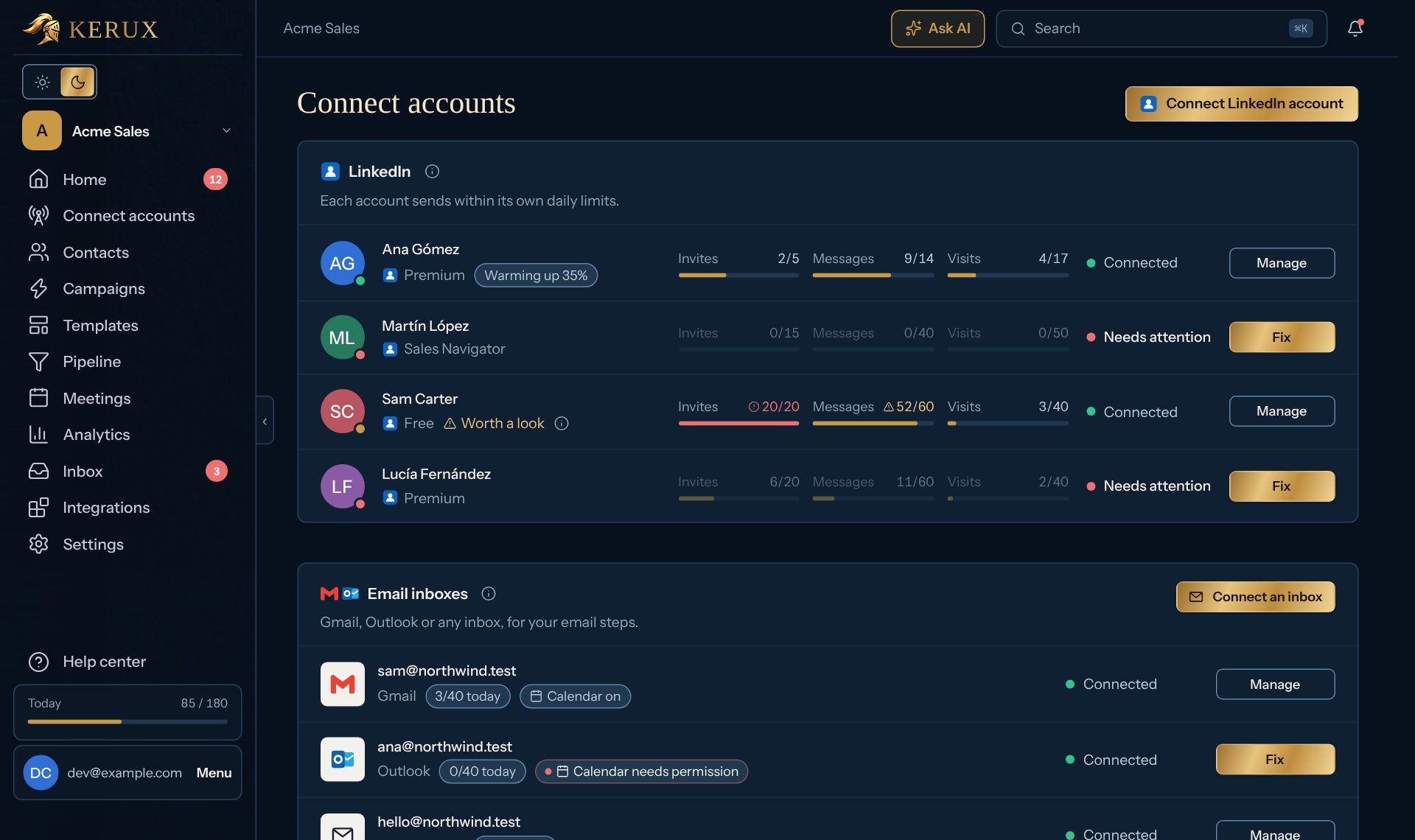
When the window says the account is connected, click Create a campaign to start your first one, or Done to stay on the page. The account appears as a row with a health dot, its three limits for today as small bars (invitations, messages, profile visits) and Warming up while warm-up is on. Click Manage (or its name) to open its side panel with the full numbers, Pause, Settings: hours, limits, pacing and Remove account. It sends for real as soon as a campaign uses it: there is no dry run (see Try a campaign without sending).
Where it works from
Kerux keeps each LinkedIn profile working from one country, so LinkedIn always sees it in the same place: the country you connect it from. Connecting a client’s profile from another country (for example, as an agency)? Click Connect accounts, then Manage on its row and Settings: hours, limits, pacing, and in Advanced settings choose the Account location, then click Save changes. A connected account moves to that country right away, without signing in again; a disconnected one uses it the next time it signs in. Detect when someone signs in goes back to the country of whoever signs in next. The Timezone in the same settings is separate: it sets the daytime that decides how often Kerux checks for invitations and profile views. See How fast Kerux sees LinkedIn activity.Common problems
LinkedIn asked for a verification code
LinkedIn asked for a verification code
Type the code LinkedIn sent you (email, SMS or authenticator app) in the box that appears. If it expired, start again.
The account says Needs attention
The account says Needs attention
Click Fix on its row: the side panel says what happened and what to do. If LinkedIn logged the account out, click Reconnect there. Its campaigns wait and nothing is lost. See Disconnected account.
It says this LinkedIn account already had a free trial
It says this LinkedIn account already had a free trial
Each LinkedIn account gets one free trial. This one was already used in another organization’s trial, so Kerux closed the new connection: the account says Needs attention, and Fix shows that message. Choose a plan in Settings > Billing, then connect the account again. Once you pay, this check no longer applies.
It says this LinkedIn account is already connected to Kerux
It says this LinkedIn account is already connected to Kerux
Each LinkedIn account can be connected only once, in one workspace. Remove it from the other workspace first (or ask its owner to), then connect it here.
Where is the saved login kept?
Where is the saved login kept?
Encrypted on Kerux’s servers, only to sign the account back in. Delete it any time with Delete saved login in the account’s settings.