

Pro plan. Tracking booked meetings (booking-tool webhooks, connected calendars and booking pages) is part of Pro and Agency (and the free trial). Anything you already have keeps working on every plan. See Plans and billing.
1. Connect where meetings arrive
Your calendar (recommended). Calendly, Cal.com, HubSpot meetings and most booking tools write the booking into your Google or Outlook calendar, so this one connection covers them all.1
Open Connected calendars
Click Meetings in the menu, then Connected calendars.
2
Connect your calendar
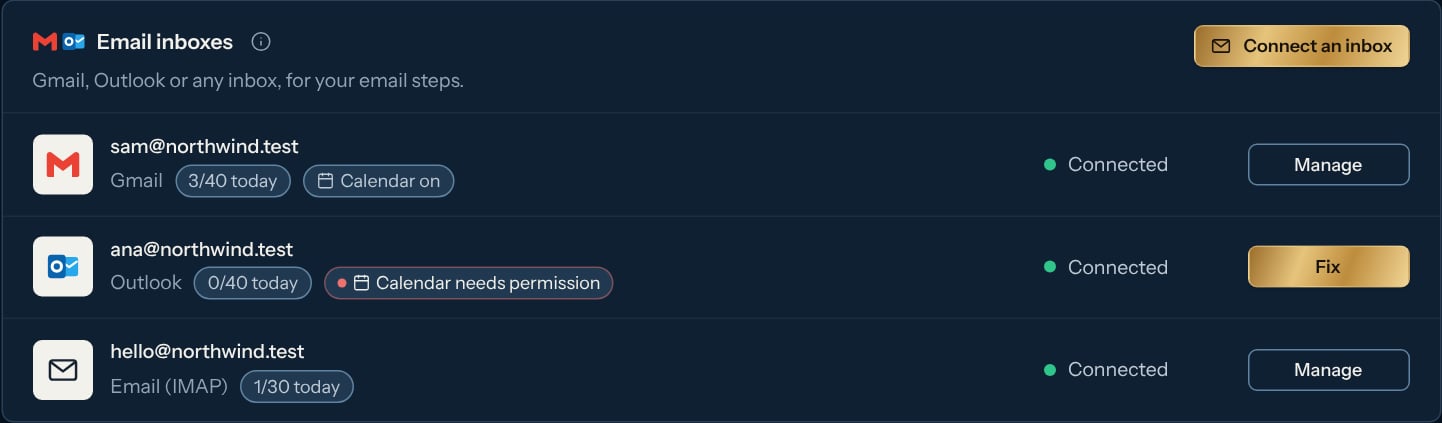
Click Connect Google Calendar and sign in with Google: it’s free and needs no email inbox (see Google Calendar). If the inbox is already connected for email, click Turn on calendar on its row instead (or, in Connect accounts > Email inboxes, Manage > Connect calendar). Outlook shows Coming soon: for now, connect your Outlook inbox and turn its calendar on.
3
Check it
The account shows under Your calendars with On. If it says Needs permission, click Give permission and allow calendar access on the sign-in page.
Kerux reads each tool’s bookings the way that tool’s own webhook documentation describes them. Some tools don’t send every detail: Reclaim.ai and Koalendar send no video call link Kerux can read (so
{{meeting.link}} is empty for their meetings, give it a default as shown below), and Chili Piper sends no name for the person who booked (Kerux still finds the contact by their email).
Another booking tool. Pick Another booking tool when your tool (or an automation) can send its own JSON. It must send event (meeting.booked, meeting.rescheduled or meeting.cancelled), id (the same for the booking and its cancellation), email, name, title, start, end and link. Send start and end as full dates with a time zone (for example 2026-11-10T15:00:00Z); a date Kerux can’t read leaves the time empty.
- Zapier or Make: for tools that only connect through them (for example Acuity Scheduling, Setmore, SimplyBook.me or Zoho Bookings), make a Zap (or scenario) with the tool’s “new booking” trigger and a Webhooks by Zapier > POST step (in Make, HTTP > Make a request, method POST, body type JSON) to the Kerux URL, with the fields above. Make a second one for cancellations with
eventset tomeeting.cancelled. - HubSpot workflows (HubSpot Meetings): add the Send a webhook action (method POST, the Kerux URL), tick Customize request body and add the keys above (a static
eventvalue, the contact’s email and the meeting’s properties). - HighLevel (LeadConnector) calendars: a workflow with the Appointment Booked or Appointment Status trigger and the Custom Webhook action (POST, JSON body with the keys above).
- YouCanBookMe: in the booking page’s notifications, add a webhook on “booking made” and on “booking cancelled” and write the JSON payload with YouCanBookMe’s shorthand codes.
2. Tell each campaign what to do: the “Always on” box
A meeting can happen at any step, so it doesn’t go in the flow. It goes in the Always on box: a small box on the canvas of the campaign’s Builder, to the left of the whole flow (also of any branch that goes left) and a little lower than the start box, not connected to any step (on a phone, a short strip above the flow). Click a line in it to open its panel. Each box’s actions run top to bottom, drawn as small steps joined by a line; the + under them adds the next one. Click Always on at the top of the box to fold it to one small pill with the number of boxes (it stays folded for everyone, also after a reload), and again to open it. To tell another app (your chat tool, a CRM, Zapier or Make), add Send to another app (webhook) and pick the address (Pick an address). Owners and admins add addresses in Integrations > Developers, under Webhooks (the panel’s link Add an address in Developers opens it; see Webhooks); Kerux sends the event, signed, with the contact and what happened.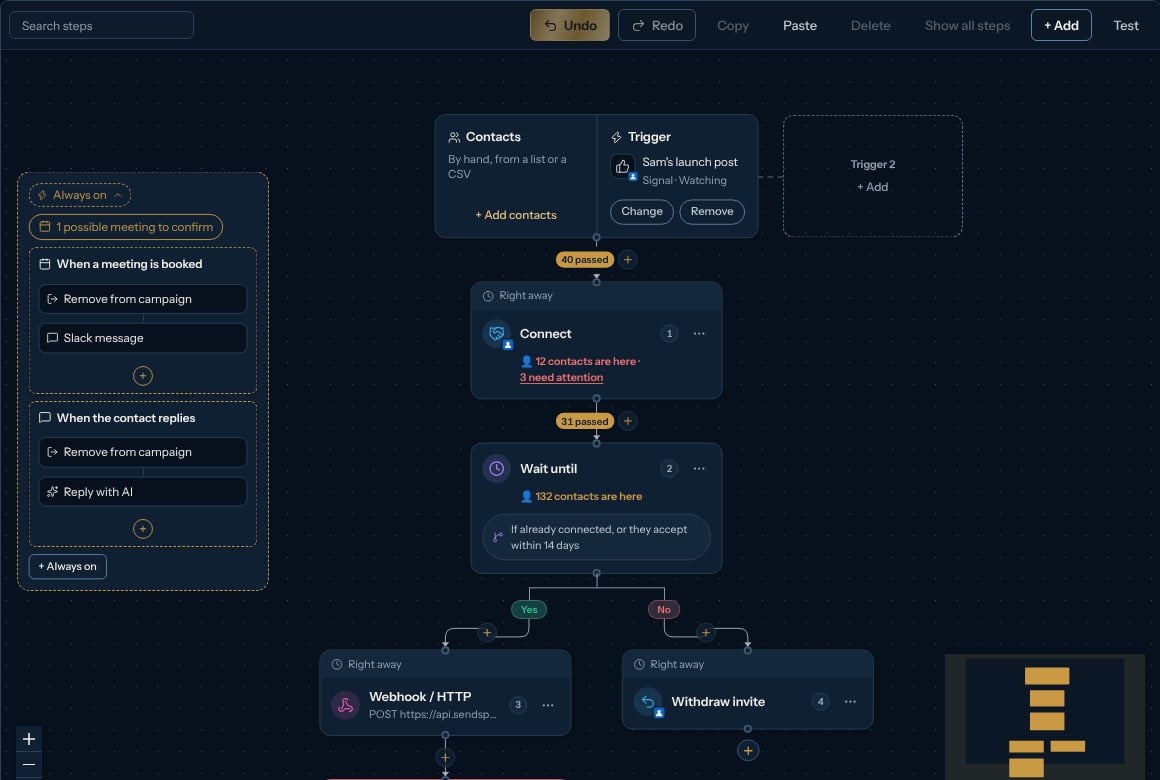
- Every new campaign already has two boxes: When a meeting is booked and When the contact replies, each with Remove from campaign. Delete or change them like any other box.
- Campaigns made before that show a ready When a meeting is booked box once: click Add it (or No thanks).
- When the contact replies is the campaign’s Stop when the contact replies setting (the Replies switch in Settings): turning one on or off changes the other. Deleting this box only turns it off.
- To make your own, click + Always on at the bottom of the box (or + Add > Always on: when…), pick the event (a meeting booked, possible or cancelled, a reply, an invitation accepted, sent or withdrawn, a reaction to a LinkedIn message, an email opened or a link clicked), then pick an action under Add an action: Remove from campaign, Reply with AI (only under When the contact replies), Slack message, Add tags, Notify the team, Send to another campaign, Set a contact field or Send to another app (webhook). A new When a meeting is booked box starts with Remove from campaign.
- Boxes are saved at once and work on a running campaign without pausing it. Nothing already sent is repeated.
- On the canvas a box stays small: it shows its event and actions, and how many runs failed, if any. Click a box to open its panel, where you change it, turn it off or delete it, and find the Run log link.
- In a day sequence the boxes show above the timeline but can’t be changed there.
{{meeting.start}} (in your workspace’s timezone, for example 2026-11-10 10:00 (America/New_York)), {{meeting.title}} and {{meeting.link}} (the video call link, when there is one). A message never goes out with an empty variable, so give the link a default text, {{meeting.link | default: "the link is in the invite"}}, or write {{meeting.link | optional}} to leave it out when there is none (an empty default like default: "" still counts as empty). See Variables.
Boxes also accept other events (the contact replies, accepts the invitation…), the same as Rules, which stay available for workspace-wide rules.
Reply with AI
Click the When the contact replies box, pick Reply with AI under Add an action, and Kerux writes an answer to each reply, with your instructions (for example “friendly and short, offer a 15-minute call”):- Draft for me to approve (the default): the answer waits in the Inbox as a Suggested reply with Send it and Edit first. Nothing goes out until you send it.
- Send automatically: only when the AI is very sure, for positive, meeting, “not now” and referral replies, at most once a day per conversation, never twice in a row, never with links, emails or phone numbers, and within the LinkedIn account’s limits. Anything else stays a draft.
- Wait before replying: from 3 to 5 minutes (with Send automatically): an automatic answer never goes out at once. Kerux waits a random time in this range (you pick it, from 1 to 240 minutes), and only inside the campaign’s sending hours (its Settings tab): a reply that arrives outside those hours is answered a few minutes after the hours start again. While it waits, the answer shows in the conversation in the Inbox with Sends automatically at and the date and time, and Send now, Edit and Cancel under it (see Use the inbox). Send now skips the wait and the sending hours but still checks the answer again and keeps to the account’s daily limits.
- Right before it goes out, Kerux checks again. It isn’t sent (and you see why under it in the Inbox) if the contact wrote again (Kerux answers their newest message instead), someone already answered, the contact left the campaign or is on the blocklist or the do-not-contact list, you turned the box off or switched it to drafts, or the text had an empty variable, a link, an email or a phone number. In most of these cases the text stays as a Suggested reply you can still send (not when someone already answered or the contact is on the blocklist or the do-not-contact list).
- If the LinkedIn account can’t send just then (its daily limit is used up, it’s paused or disconnected), the answer waits for the next chance and goes out then; it’s never marked as failed for that. After 4 days without a chance, it’s kept as a draft and you get a notice.
- Not interested and stop writing to me are never answered: the contact’s owner (or whoever created the campaign) gets a notification in Kerux instead. Tick Also tell the contact’s owner in Kerux to be told about every answer.
- Under Answer these replies, pick which reply types it answers: Positive, Wants a meeting, Question, Not now, Referral, Out of office and Other (all of them unless you untick some). For those types the box decides, instead of the campaign’s What to do with each reply setting.
- The contact’s history says AI reply drafted (Written by AI), AI reply scheduled (Written by AI) when an automatic answer is waiting, AI reply sent (Written by AI) once it really went out, or why it waits or wasn’t sent, for example AI reply waiting: outside the campaign’s sending hours, AI reply waiting: the LinkedIn account’s limit is used for now, AI reply not sent: the contact wrote again or AI reply not sent: canceled by Ana. AI reply: Ana pressed Send now shows who sent one early.
3. Sure or possible: who booked?
People often book with another email than the one you have. Kerux tells two cases apart:- Sure: the attendee’s email is the contact’s email (or an email you confirmed before, or one saved in an email field of the contact). The box runs right away.
- Possible: no exact email, but strong signs point to a contact. Examples:
- “Mariano Pérez” books from mariano@newco.com and your contact is Mariano Pérez García: same name.
- “Ana Ruiz” books from ana@acme.com and your contact Ana Ruiz works at acme.com: same name and email at their company’s domain (the domain never counts for gmail.com, outlook.com and other personal mailboxes, and alone it isn’t enough).
- The event is called “Call with Ana Ruiz”: their name in the meeting title.
- Only one contact got your Calendly link in the last 14 days and an unknown email books: got your booking link recently.
- The same email is on two contacts: both are shown, same email (on several contacts).
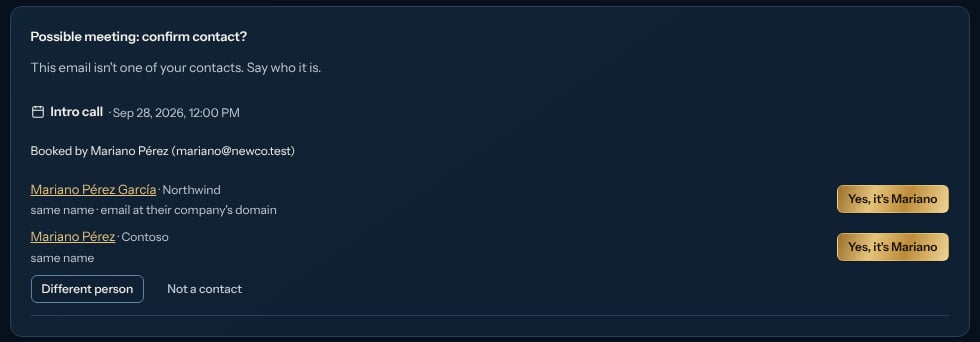
- Yes, it’s and the contact’s name (for example Yes, it’s Ana Ruiz): that email is saved on the contact (next time it’s sure) and the meeting counts as booked: the campaign’s box runs.
- Different person: search for the right contact (name, company or email) and click It’s this contact.
- Not a contact: nothing happens.
4. What you see
- The contact’s history shows Booked a meeting, Meeting moved or Meeting cancelled, with the title and time.
- You get a notification in Kerux when a contact books or cancels, or when a possible meeting needs you (the person who connected the calendar or booking tool; otherwise the workspace’s owners and admins).
- A cancelled meeting is noted and you’re told, but the contact is not put back into the campaign (you decide).
- Analytics shows Meetings booked for the workspace and a Meetings column per campaign.
- To start a campaign when someone books (an onboarding), use the Kerux trigger Meeting booked. The template Meeting booked: notify me in Slack does it in one click.
Remind the contact before the meeting
Fewer no-shows: a short reminder some hours before the call, by email, WhatsApp or LinkedIn.1
Make a reminder campaign
Create a campaign with the step that sends the reminder (Send email, Send WhatsApp or a LinkedIn Message), for example:
Hi {{contact.first_name}}, see you {{meeting.weekday}} at {{meeting.time}} ({{meeting.timezone}}): {{meeting.link | default: "the link is in the invite"}}. Add Notify the team or a Slack step too if you want a note yourself.2
Start it from Meeting starts soon
On the start box, + Add under Trigger > Kerux event > Meeting starts soon, and pick how long before: 15 minutes to 3 days (24 hours by default).
3
Fit the sending hours
In the campaign’s Settings, set the sending days and hours so the reminder can leave in time (a reminder for a Monday 9:00 call sent 24 hours before needs Sunday in the sending days).
- The meeting’s own time.
{{meeting.start}},{{meeting.date}},{{meeting.time}}and{{meeting.weekday}}are in your workspace’s time zone, right across summer time changes (“24 hours before” is always 24 real hours). - Cancelled: no reminder. If the meeting is cancelled (or the contact is taken off it) before the reminder leaves, it isn’t sent. The contact’s history says Meeting reminder not sent: the meeting was cancelled.
- Moved: a new reminder. The reminder for the old time stops and a new one goes out before the new time, with the new time in it.
- Never twice, never late. Each meeting time is reminded once (even if the campaign doesn’t allow re-entry), and nothing is sent once the meeting has started: a reminder still waiting for the sending hours then is dropped with the meeting had already started.
- Booked at the last minute. A meeting booked after its reminder time (booked 2 hours ahead for a 24-hour reminder) gets no reminder, unless you tick Also remind meetings booked after that time; then it goes out right away.
- Only meetings with a sure contact (or one you confirmed) are reminded; all-day events are not.