

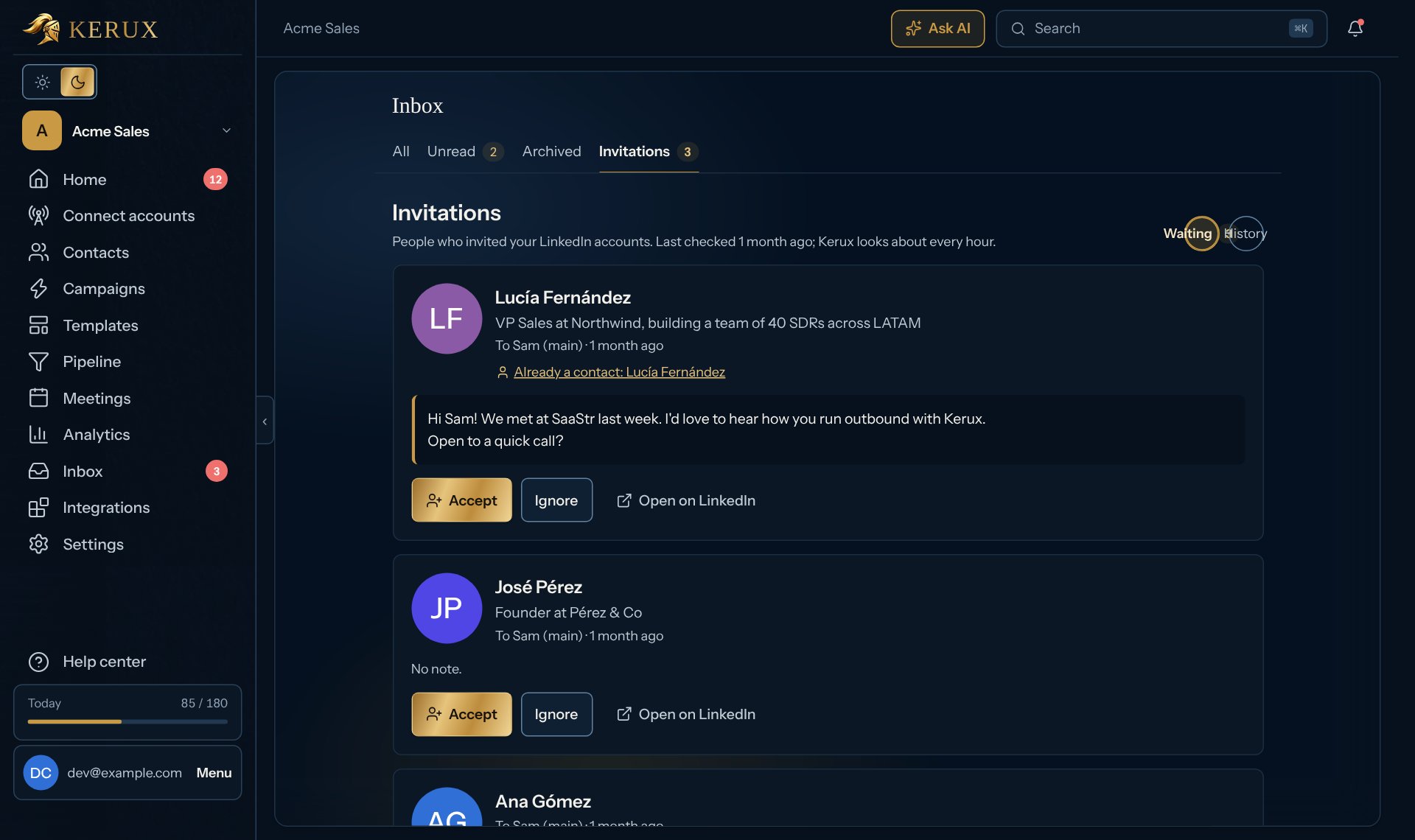
See your invitations
1
Open the Invitations tab
Click Inbox in the left menu, then Invitations next to All, Unread and Archived. The number on the tab is how many are waiting for an answer.
2
Read each card
Each card shows the person’s photo (or initials), name and headline, which of your LinkedIn accounts they invited (“To …”) and when, and their note in full. Already a contact means the person is already in your contacts: click it to open the contact.
3
Answer
Click Accept or Ignore. Kerux does it on LinkedIn from that account. Open on LinkedIn opens their profile in a new tab.
After you accept
When you accept, LinkedIn turns the person’s note into the first message of a new conversation with them. It shows in your inbox with their name, photo and headline from the invitation. In History, an accepted card has Open conversation once that chat exists, and the conversation’s details show Accepted invitation on the date, with the note.How often Kerux checks
LinkedIn doesn’t tell Kerux about new invitations, so Kerux looks for them about every hour from 7 AM to midnight in your account’s time zone, and every 2 hours from midnight to 7 AM. On Saturday and Sunday it looks every 2 hours from 7 AM to 10 PM. A new invitation usually shows within an hour. If a campaign starts from Invitation received on that account, Kerux checks more often (see How fast Kerux sees LinkedIn activity). The same check feeds both, so it never counts twice against your account’s limits. The first time Kerux checks an account, every invitation already waiting shows up at once (without a notification). After that, each new invitation also shows in Home > Tasks under notifications, with a link to the tab. Note: Kerux uses at most half of the day’s LinkedIn reads for these checks; the other half stays for your campaigns. On a very busy day the tab says that checking is paused until the next day.Accept and Ignore are safe to click
- Each answer is sent to LinkedIn once. Clicking twice, or a slow connection, never accepts or ignores twice.
- If LinkedIn doesn’t answer clearly, the card says Checking with LinkedIn whether it went through, and Kerux confirms it at its next check. Nothing is sent again in the meantime.
- If it didn’t go through, the card says so and you can try again.
- Ignoring doesn’t tell the person.
- Up to 50 answers a day per LinkedIn account from Kerux.
- Accepting someone who is already a contact adds it to the contact’s history.
Who sees them
Invitations are personal, like conversations with people who were never in a campaign: you see the invitations of the LinkedIn accounts you connected. Owners and admins also see an account’s invitations when the person who connected it left the workspace or became a viewer. To answer you need to be a member, admin or owner (viewers can only look). Support staff viewing your workspace can’t accept or ignore.Use the note in a campaign
A campaign that starts from Invitation received gets the note as the variable Invitation note ({{trigger.invitation_note}}) in Variables (above the message), under LinkedIn invitation. Many invitations come without a note, so give it a value in the message’s Handle missing data section, for example “no note” (it writes {{trigger.invitation_note | default: "no note"}}): a message never goes out with an empty variable. See Variables.
From the API
GET /v1/linkedin-invitations lists them (filters status and sender_id, scope inbox:read), and POST /v1/linkedin-invitations/{id}/accept or /ignore answers (scope inbox:write), with the same rules. The webhook event linkedin.invitation_received fires for each new invitation. See API and Webhooks.