

A network shows Not available yet or Coming soon in Accounts until you can connect it. TikTok, YouTube, Pinterest and Google Business Profile are coming soon. LinkedIn works as soon as your account is connected. When publishing from a LinkedIn account isn’t available yet, you can still write posts and save them as drafts.
Connect your accounts
Click Accounts at the top of the page (or the Accounts tab). Connect your social accounts shows one card per network: the main networks first, then Also available. Each card lists the accounts already connected and has one button: Connect (or Add another).- LinkedIn: your connected LinkedIn accounts are already there. Click Find my LinkedIn pages under one to add the company pages it manages: you can then post as the page.
- Facebook and Instagram: click Connect on the Facebook or Instagram card and sign in with Facebook. Your Pages appear, each with the Instagram professional account linked to it (Business or Creator).
- X: click Connect on the X card and sign in with X.
- Threads: click Connect on the Threads card and sign in with Threads.
- Bluesky: in Bluesky, open Settings > Privacy and security > App passwords and create one for Kerux (it looks like
abcd-efgh-ijkl-mnop). In Kerux, click Connect on the Bluesky card, type your handle (for exampleana.bsky.social) and that app password. Your main Bluesky password is never asked for, and the app password itself isn’t kept. To take Kerux’s access back at any time, delete that app password in Bluesky. - Mastodon: click Connect on the Mastodon card, type your server (the part after the second @ of your address, for example
mastodon.social), click Continue and sign in on your server.
Write a post
1
Pick where it goes
Click New post (or + on a day of the calendar). Under Post to, tap each account the post goes to. One post can go to LinkedIn, Facebook, Instagram, X, Threads, Bluesky and Mastodon at once.
2
Write it once, adjust it per network
Type the post under All networks, or click Write with AI. With several networks picked, open a network’s tab (for example X) to write a version just for it: Fit to X shortens it to X’s limit, and Write with AI > Fit to this network rewrites it in that network’s tone. Use the same text as the others goes back. Each network shows its count and limit (LinkedIn 3,000 characters, Facebook 63,206, Instagram 2,200, X 280, Threads 500, Bluesky 300, Mastodon 500; on X and Mastodon a link counts as 23 characters; on Bluesky an emoji counts as one). Tap a suggested hashtag, or type one and click Add hashtag. A post can’t use variables like first name: there is no contact to fill them in.
3
Add pictures, a video or a link (optional)
Add up to 4 pictures (JPEG, PNG, GIF or WebP, 3 MB each) or one video (MP4 or MOV, up to 50 MB), not both. Instagram posts need a picture or a video, and Instagram shows JPEG pictures: PNG and WebP pictures are turned into JPEG for you when Instagram is picked (WebP too when Threads is picked: Threads takes JPEG and PNG). Bluesky takes pictures up to 1 MB each and no video. Threads takes videos up to 5 minutes. Under Link, paste a video on YouTube or Vimeo, or a page: Facebook and Bluesky show it as a preview card; on the other networks it goes at the end of the text.
4
Check the previews
Preview shows how the post looks on each network, cut where the network shows see more. Anything a network would refuse is listed in red under the form (for example Instagram: add a picture or a video.), and the Schedule button waits until it’s fixed.
5
Pick the time
Choose the Date and time and the Timezone (the account’s by default). Good times suggests the next good slots for the first network picked (weekday mornings for LinkedIn, lunch and evening for Instagram). Daylight saving changes are handled: 09:00 stays 09:00 in that timezone all year. For LinkedIn, Who can see it is Anyone or Connections only.
6
Schedule
Click Schedule. Publish now sends it within a minute; Save as draft keeps it without going out. A post for several networks becomes one post per network, shown as one card.
The calendar
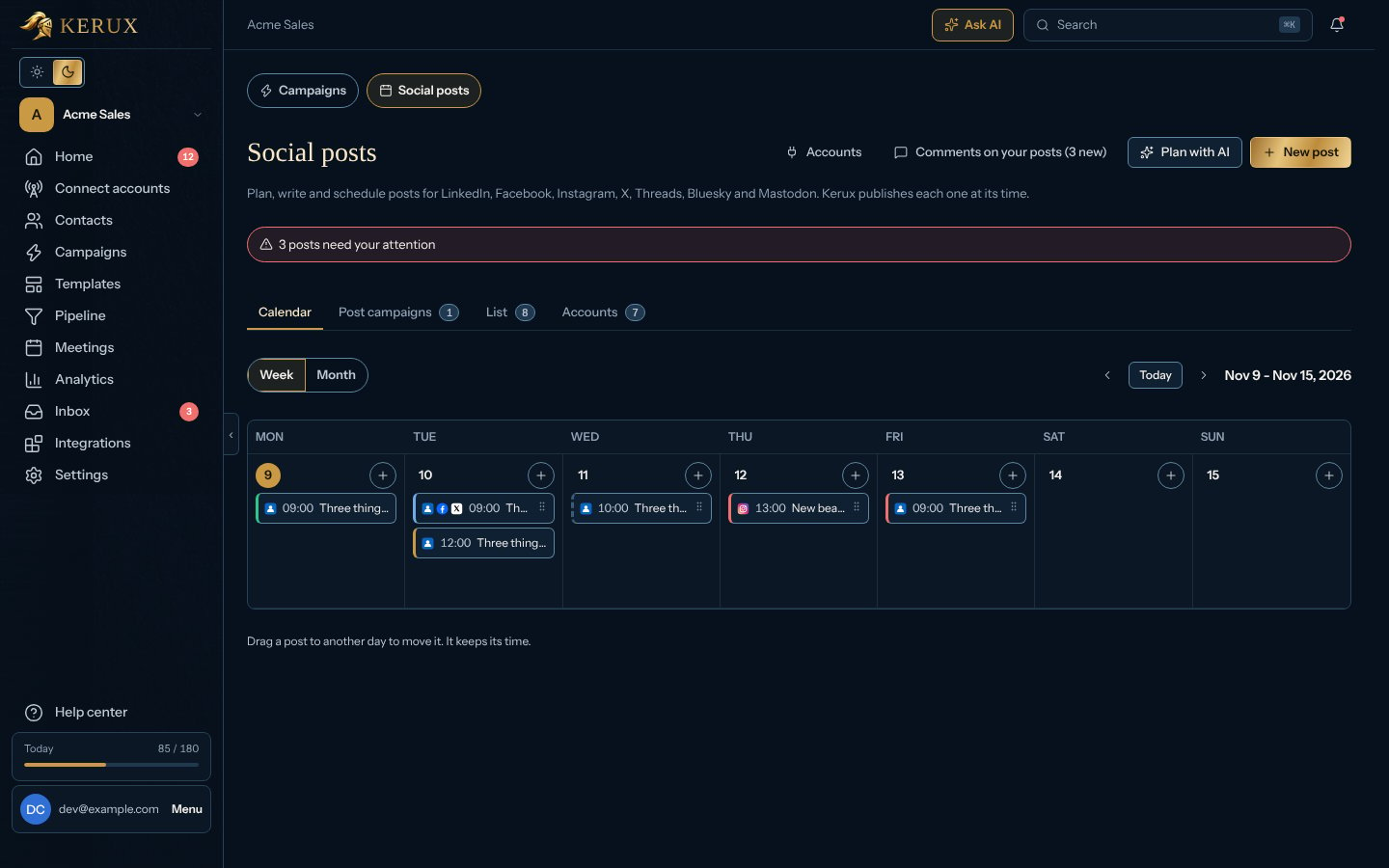
The Calendar shows a Week or a Month of posts on every network. Each card shows the networks it goes to, its time and its first words; its left edge says its state (blue scheduled, green published, red failed, dashed draft). Use the arrows and Today to move through the weeks.- Drag a card to another day to move it: it keeps its time of day, and the same post on the other networks moves with it. A post that is going out or already out can’t move. On a phone, tap the card, then Edit to change its date.
- Tap a card to see each network’s post with its state, what happened and what to do.
- + on a day writes a post for that day.
Post campaigns
A post campaign is a series of posts on a timeline, for example a launch: a teaser on day 1, the announcement on day 3, a case study on day 7.1
Plan it from a goal
Click Plan with AI, write what you want to achieve (for example
Launch my new feature in 2 weeks), pick the first day and the accounts for each network, and click Plan it. Kerux suggests the posts, their days and good times, and writes each one for each network, using your business profile. It uses your AI credits. When the AI isn’t available, Kerux still plans the campaign from your goal and says so: read the words before you schedule.2
Review the timeline
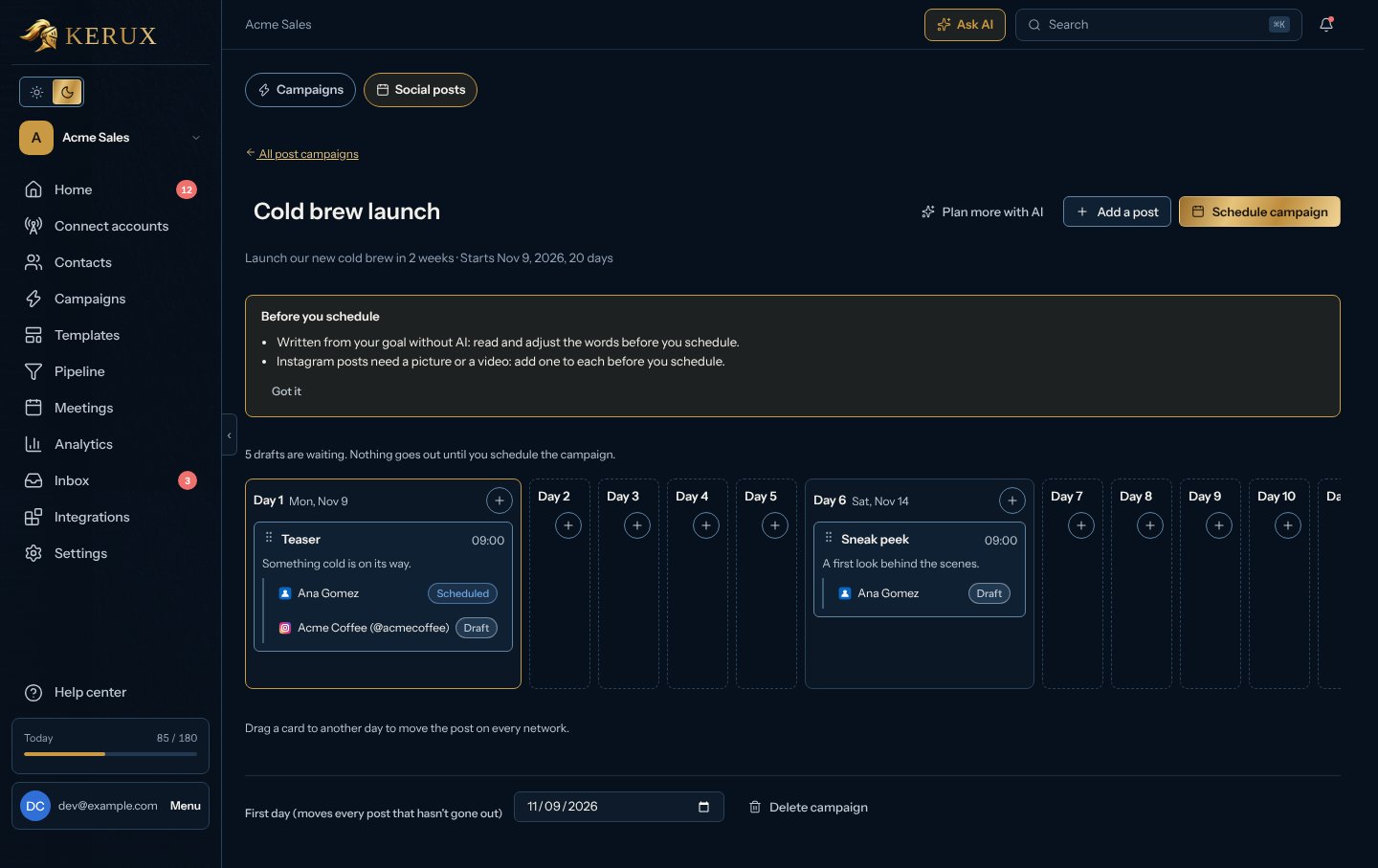
The campaign opens on its timeline: Day 1, Day 2 and so on with their dates, one card per post and one line per network inside it. Tap a network’s line to read or edit that post. Before you schedule lists what to check (for example a picture for Instagram); Got it closes it for good.
3
Adjust
Drag a card to another day to move the post on every network. + on a day, or Add a post, adds one. Rename the campaign by clicking its name. First day at the bottom moves every post that hasn’t gone out by the same number of days.
4
Schedule the campaign
Nothing goes out until you click Schedule campaign. Each draft is checked like a single post; the ones that can’t go out yet stay drafts and say why (for example a missing picture for Instagram).
Turn the people who react into contacts
Under a published LinkedIn post (on your own profile), choose a campaign for the people found (or Just add them to a list) and click Watch who reacts. Kerux starts a signal on the post with the same account: for 7 days, the people who react or comment become contacts in a new list and, if you chose one, enter the campaign. To go further, click Comment automation: comment a keyword, get a DM under the post. See Comment automation.Safe by design
- Never posted twice. If a network’s answer gets lost, the post shows Checking while Kerux looks at the account’s recent posts. Found: it is marked published. Not found after three checks: Kerux asks you. Look at the account, then click It’s published (you can paste its link), Publish again (only if it isn’t there) or Cancel.
- A human pace. At most 3 posts a day per LinkedIn profile or page, 10 minutes apart; at most 10 a day per Facebook Page, Instagram, X, Threads, Bluesky or Mastodon account (in the account’s timezone). Posts have their own limit: they don’t use the LinkedIn account’s daily invitations or messages.
- Never late by surprise. If an account needs attention, its post waits. If it can’t go out within 12 hours of its time, it isn’t published late: it shows under Not published so you can pick a new time.
- X posts per month. Your workspace has a monthly number of X posts (shown under Accounts); a post with a link counts as 13.
- Videos are kept until their posts go out, then removed a week later. Your workspace keeps up to 300 MB of videos at a time.
Why a post didn’t go out
API and webhooks
Everything here is also in the API under Social planner: posts (/v1/scheduled-posts, with platform, social_account_id, video_id, link_url and /move), post campaigns (/v1/post-series, /v1/post-series/plan, /v1/post-series/{id}/schedule), the accounts (/v1/social-accounts) and videos (/v1/social-media/videos). The webhooks linkedin.post_published and linkedin.post_failed fire for LinkedIn posts, social.post_published and social.post_failed for Facebook, Instagram, X, Threads, Bluesky and Mastodon (with platform). A Bluesky account can also be connected through the API with POST /v1/social-accounts/bluesky (handle and app password).