

1
Choose your contacts
Click Contacts, then Import. The Import contacts page opens (Contacts at the top takes you back). Upload a file (CSV or Excel, up to 25 MB and 50,000 rows) or paste rows with the column names in the first row. A big file takes a minute to read before the columns show.
2
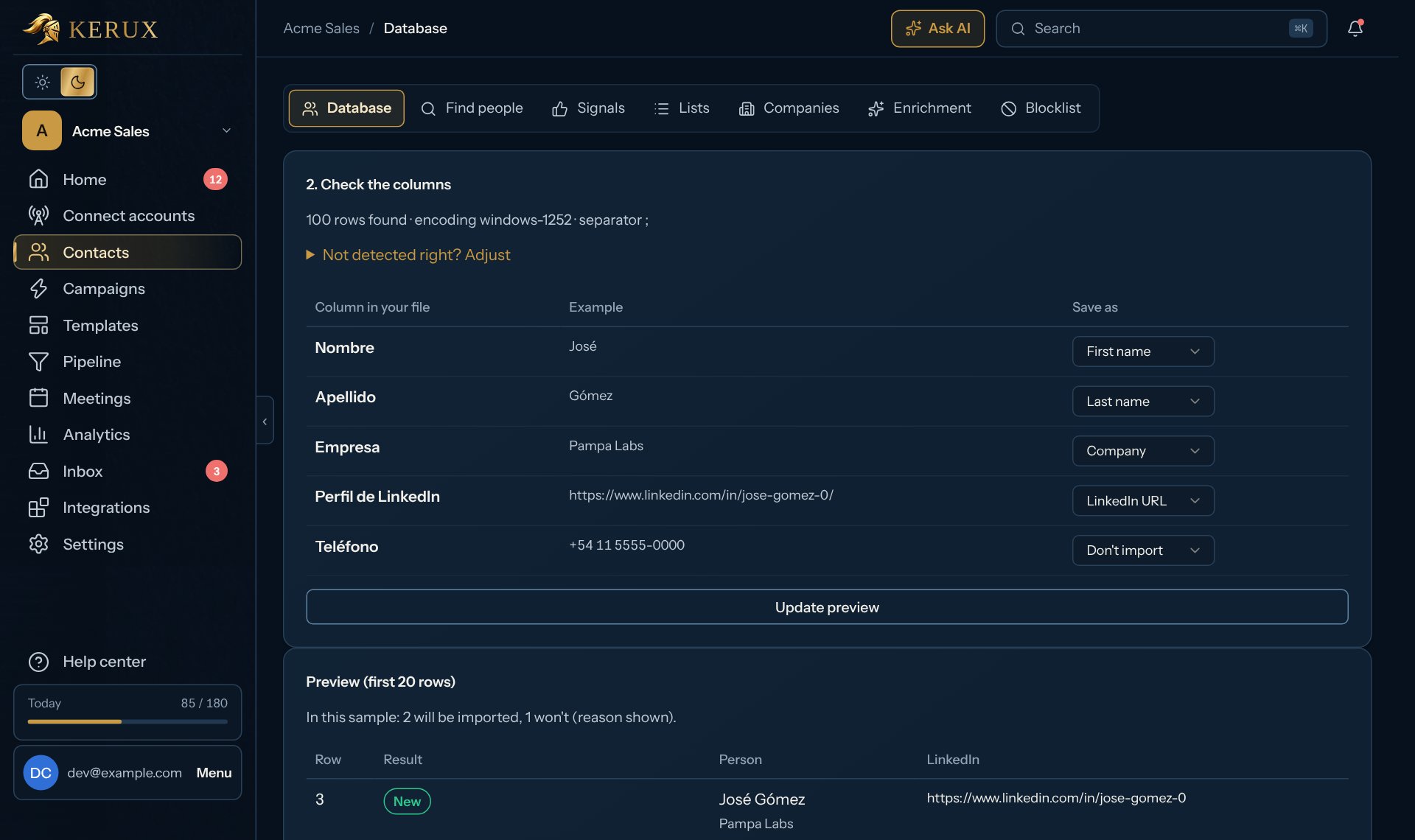
Check the columns
Kerux guesses what each column is (LinkedIn URL, first name, company…). Change any guess with Save as, or pick Don’t import. Unknown columns can become custom fields. The preview shows which rows will be imported and why others won’t.
3
Import
Choose what happens with people already in your workspace (leave them or update them) and the name of the list to save them in. Click Import … rows (it shows how many). You can leave the page while it runs.
Texts and WhatsApp only go to contacts who agreed. If every person in the file gave you their number and agreed, tick They agreed to get texts (SMS) or They agreed to get WhatsApp messages under Consent to texts or WhatsApp (optional) and confirm. A column such as
sms_consent with yes, imported as a custom field, counts for that row only. Only rows with a phone (with its country code) get a consent. Bought or scraped phone lists never count. If every contact your workspace adds agreed, an owner or admin can turn on Contacts’ consent in Settings > Sending rules once instead. See Sending rules and consent.Common problems
Some rows were not imported
Some rows were not imported
Click Download rows not imported (CSV): the file lists each row with its reason (for example, no valid LinkedIn URL). Fix them and import that file again.
I imported the wrong file
I imported the wrong file
Open the import under Previous imports and click Undo import (available for 24 hours). A big file is undone in the background: the import shows Undoing… until every contact it added is removed and every contact it changed has its earlier values back.
An email was dropped
An email was dropped
Invalid emails are removed and the person is imported without one. The result page says how many.