

Pro plan. Connecting Claude or ChatGPT is part of Pro and Agency (and the free trial). See Plans and billing.
Connect it
- Claude
- ChatGPT
1
Add a connector in Claude
In claude.ai, open Settings > Connectors and click Add custom connector.
2
Paste the address
Name it Kerux, paste the address above and click Add. Leave the advanced settings empty.
3
Click Connect
A Kerux page opens. Sign in if you’re asked to.
4
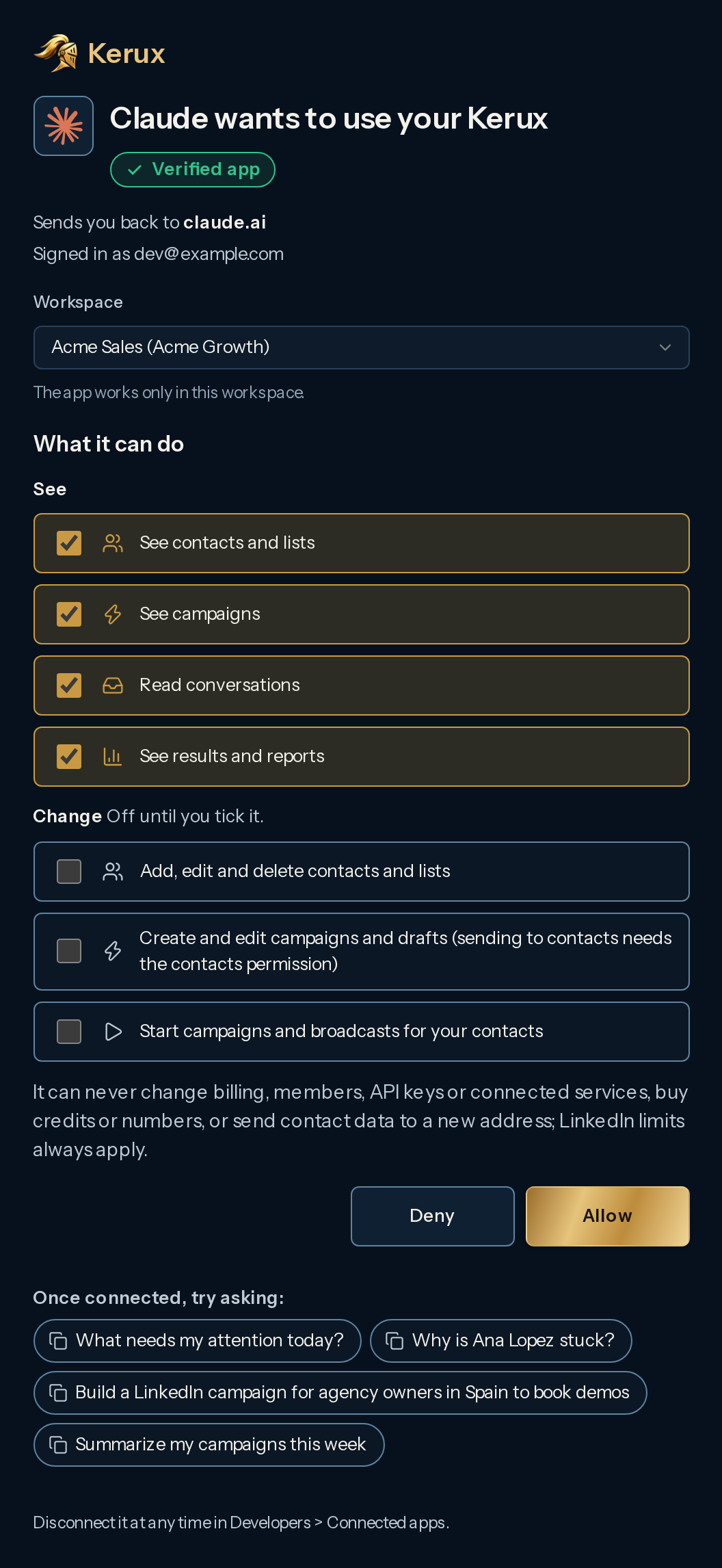
Check the logo, pick, Allow
Kerux shows Claude’s logo and Verified app. Pick the workspace and the permissions, then click Allow. You’re back in Claude, ready to ask.
What to ask
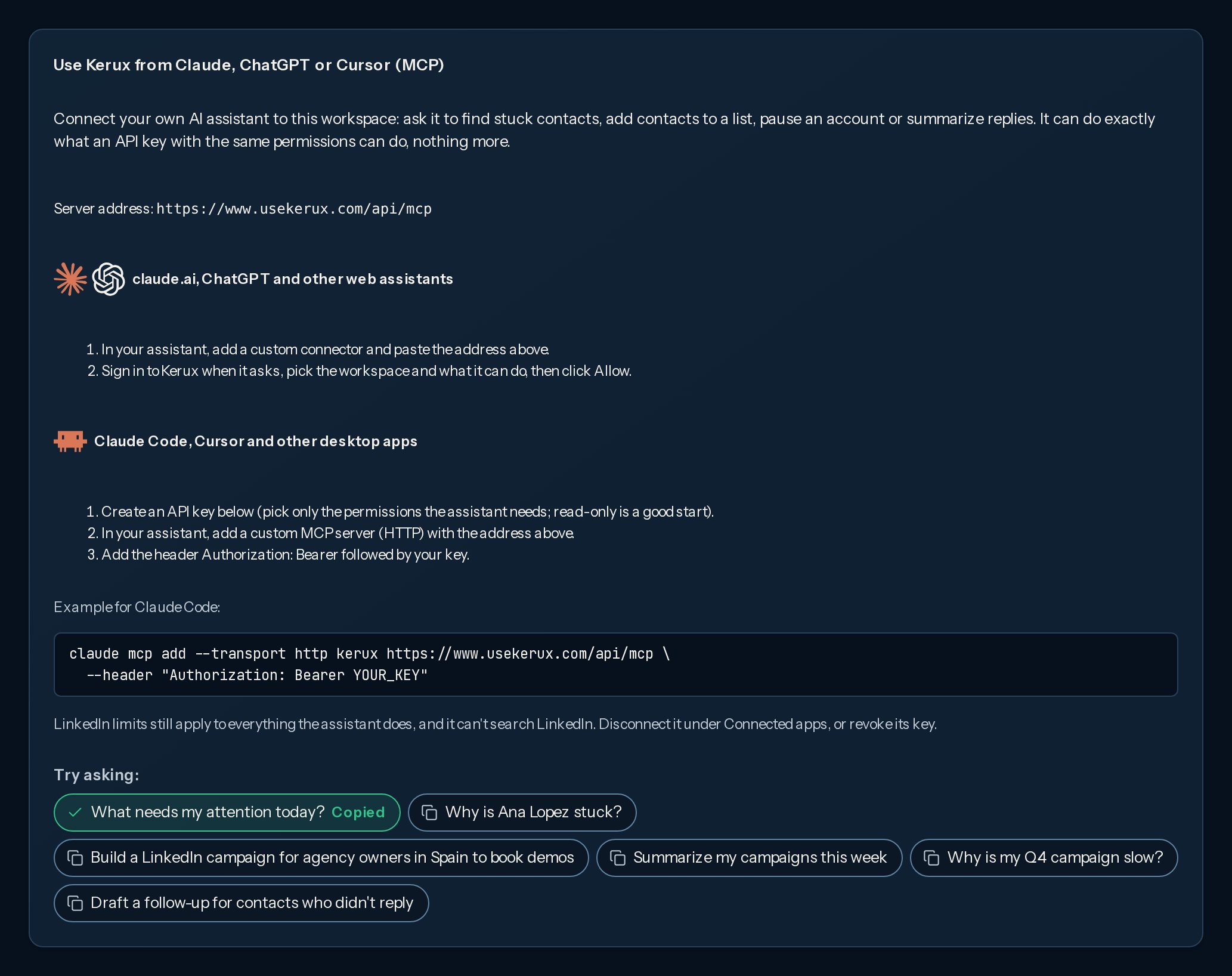
Click a question to copy it, then paste it into Claude or ChatGPT.All example questions as text
All example questions as text
Troubleshooting
- “Why is Ana Lopez stuck?”
- “Why is my Q4 campaign slow?”
- “Which contacts are waiting on me, and how do I fix each one?”
- “Is any of my LinkedIn accounts disconnected or at its limit today?”
- “Build a LinkedIn campaign for agency owners in Spain to book demos.”
- “Add a 3 day wait and a short follow-up after the first message.”
- “Is my Webinar campaign ready to launch? What would block it?”
- “Prepare my Q4 campaign for launch.”
- “Find my contacts at Acme and add them to the Q4 campaign.”
- “Add these 10 LinkedIn profiles to my Webinar list.”
- “Show me Ana Lopez: her campaigns and where she is in each one.”
- “What needs my attention today?”
- “Show me the replies I haven’t answered yet.”
- “Draft a follow-up for contacts who didn’t reply.”
- “Summarize my campaigns this week.”
- “How many invitations did each account send this week, and how many were accepted?”
- “How did my campaigns do in the last 30 days?”
What it can and can’t do
Contact names, messages and replies are written by other people. The assistant treats them as information, never as instructions.
See and disconnect your apps
Open Integrations > Developers > Connected apps. Each app shows its logo, Verified, what it may do and when it was last used. Click Disconnect: it stops working on its next request.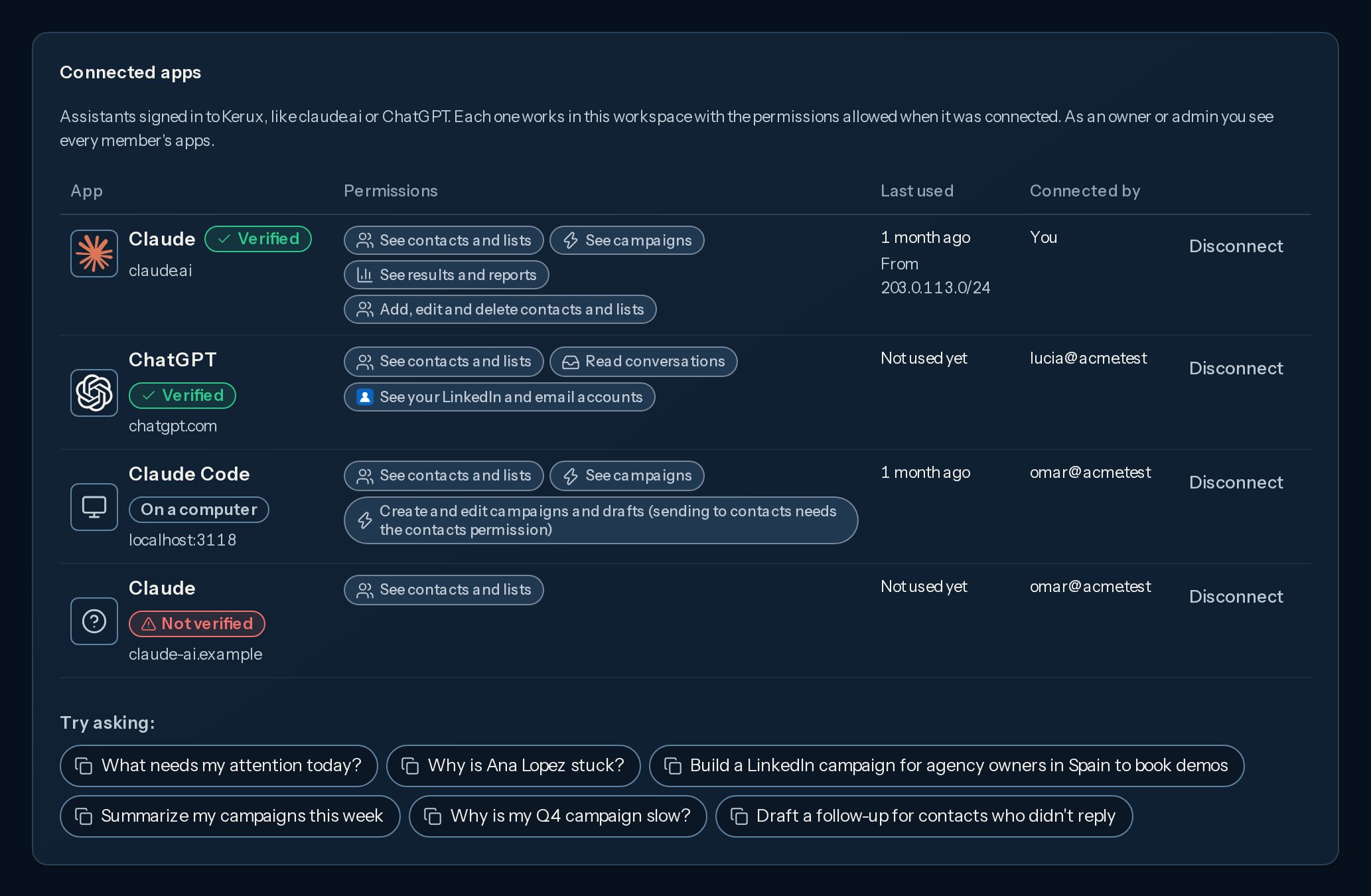
- Verified: Kerux recognizes Claude or ChatGPT by the site it sends you back to.
- On a computer: an app on someone’s own computer, like Claude Code.
- Not verified: Kerux doesn’t know this app. Disconnect it if you don’t recognize it.
Questions
Is it safe?
Is it safe?
The assistant only sees the workspace you picked, and only what your own Kerux role can see. Kerux shows Verified app with the assistant’s logo only when it recognizes Claude or ChatGPT by the site it sends you back to; any other app gets a red warning. It always asks before anything that sends a message, launches a campaign or deletes. A connection lasts 90 days, then you sign in to Kerux again.
Which plan do I need?
Which plan do I need?
Pro or Agency, or the free trial. See Plans and billing.
How do I disconnect it?
How do I disconnect it?
In Kerux, open Integrations > Developers > Connected apps and click Disconnect on its row. Owners and admins see and can disconnect every member’s apps.
Why did the assistant say it can't do something?
Why did the assistant say it can't do something?
It only has the permissions you ticked. For example, launching a campaign or a broadcast needs Start campaigns and broadcasts for your contacts, and Prepare a campaign for launch shows up only with it. To add a permission, connect Kerux again from your assistant and tick it. Some things are never possible from an assistant, see What it can and can’t do.
Which assistants work?
Which assistants work?
Claude (claude.ai) and ChatGPT sign in with this page. Claude Code, Cursor and other desktop apps that support MCP connect with an API key: see Use Kerux from your AI assistant (MCP).