

Pro plan. LinkedIn conversations are on every plan. Email and WhatsApp conversations come from inboxes and numbers you connect, and connecting them is part of Pro and Agency. See Plans and billing.
Every channel in one list
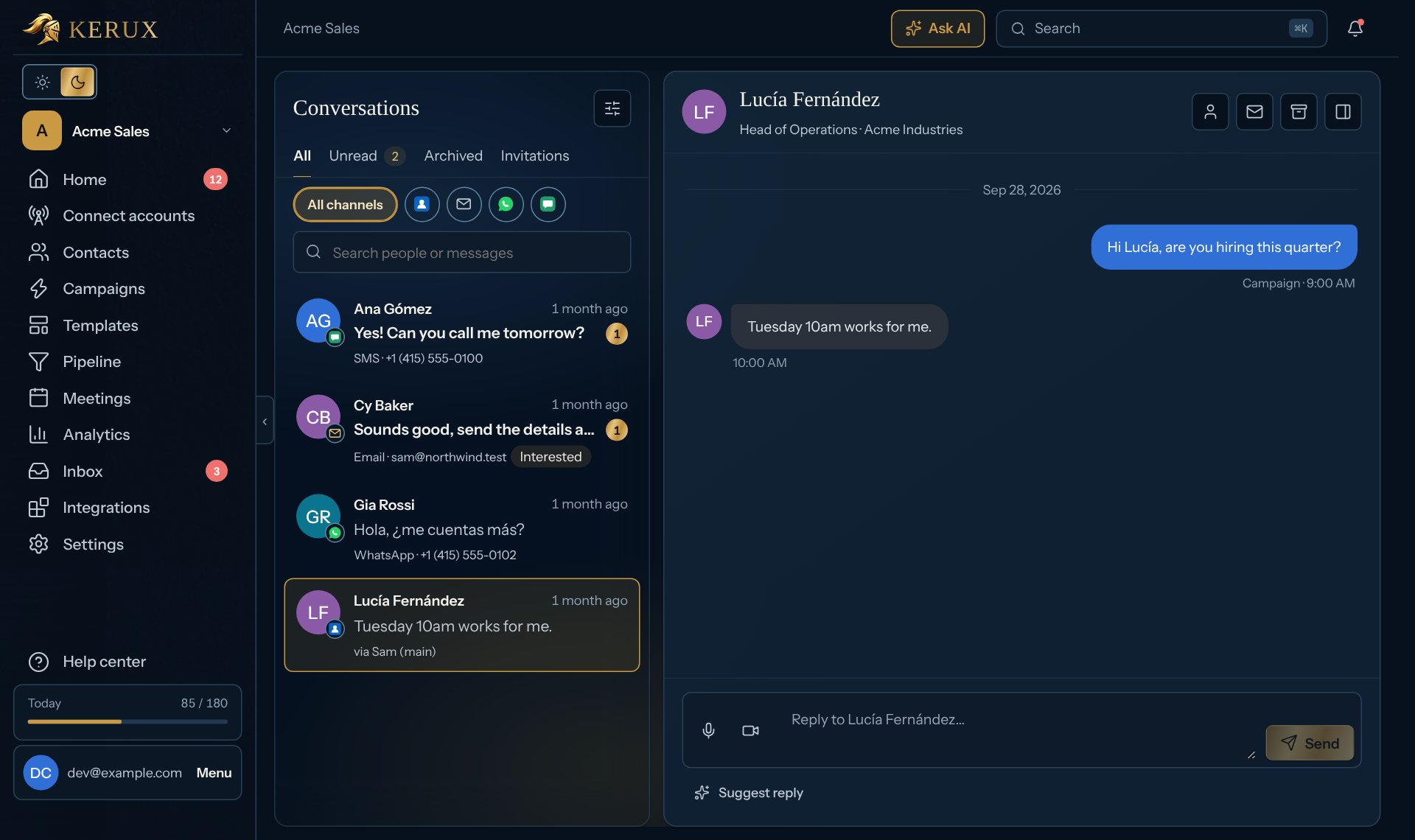
Each conversation has a small icon on the photo for its channel, and the line under it says where it is: via your LinkedIn account, Email · the inbox, WhatsApp · or SMS · the number. Above the list, pick All channels, LinkedIn, Email, WhatsApp or SMS to see only one.- Email: when a contact answers an email (a campaign’s or one you sent from that inbox), it shows in their conversation with that inbox, with the subject. Emails you send to a contact from the inbox itself (outside Kerux) show too.
- WhatsApp: when a contact writes to one of your numbers, it shows in their conversation with that number, with the campaign’s messages to them. Text messages (SMS) are coming soon.
- Only people who are your contacts have an email, WhatsApp or SMS conversation (they are matched by their email or phone). Your team sees them, like the contact.
Answer a message
1
Open a conversation
Click Inbox in the left menu and pick a conversation. Unread ones are in bold with a dot.
2
Write your reply
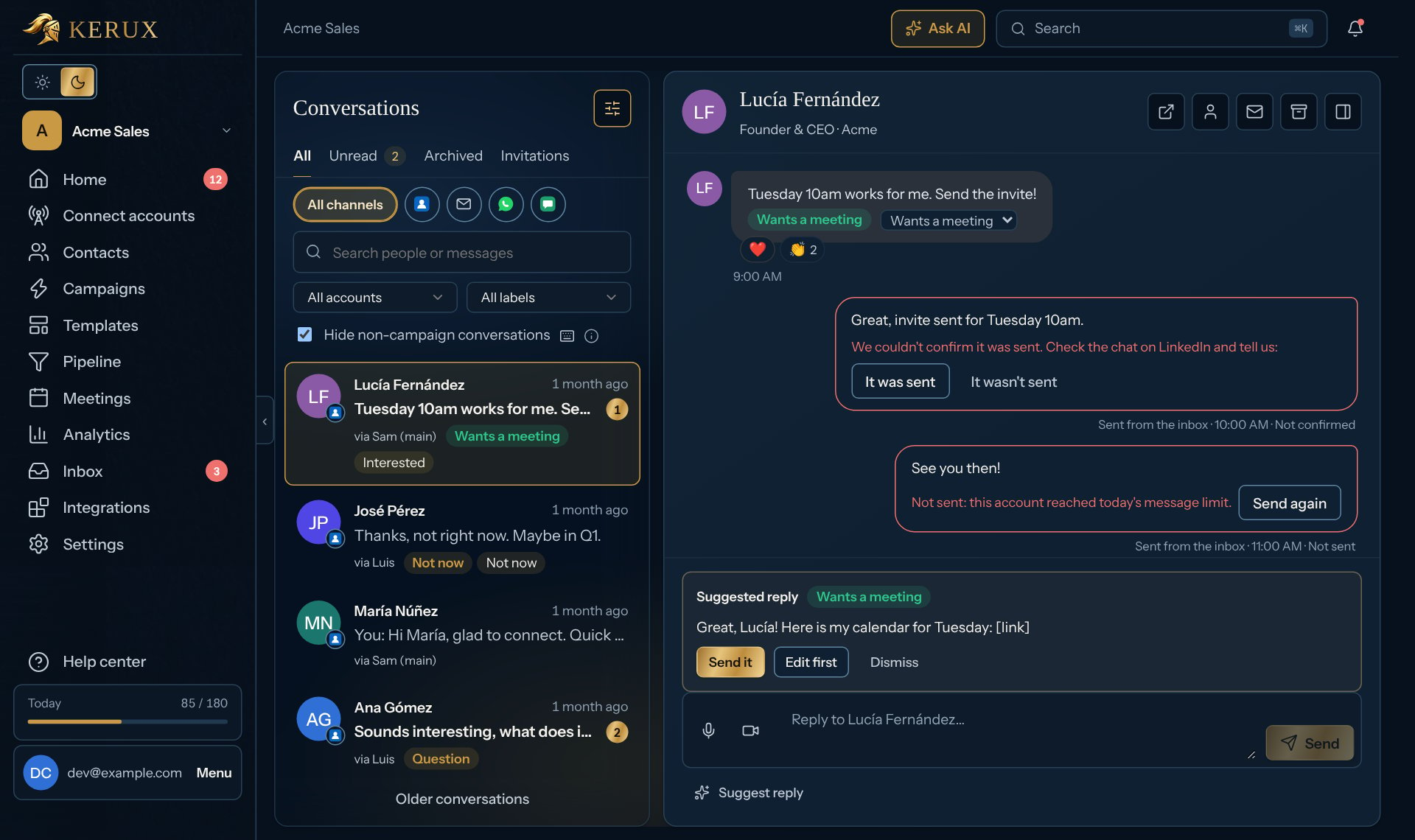
Type in the box at the bottom and click Send (or press Ctrl + Enter). It goes on the conversation’s channel: from the LinkedIn account, the email inbox or the number that owns the conversation, within its daily limits, and only once.
3
Or let Kerux suggest one
Click Suggest reply: Kerux drafts an answer in the box for you to edit. It writes in the language of the conversation (the person’s latest message first), never guessed from a name or a link. Nothing is sent until you click Send.
An automatic answer waiting to go out
When a campaign answers a reply by itself (Reply with AI set to Send automatically, or a reply type set to Automatic), the answer shows in the conversation with Sends automatically at and the time, and three buttons under it:- Send now: it goes out right away instead of waiting (even outside the campaign’s sending hours). Kerux still checks it again first and keeps to the LinkedIn account’s daily limits; if the limit is used up, it waits for the next chance. It’s sent only once.
- Edit: it’s taken out of the queue and its text goes into the reply box, so you can change it and click Send yourself.
- Cancel: it’s never sent and stays as a Suggested reply (with Send it and Edit first) in case you change your mind.
Answer an email, a WhatsApp message or a text
You answer them the same way, with the same sending rules as your campaigns (see Sending rules and consent):- Email: the reply goes from the same inbox, in the same thread, with the subject filled in (Re: the last one; you can change it) and nothing added at the end (a reply is a plain email). An address that unsubscribed is never emailed.
- WhatsApp: the reply goes from the same number, only to a contact who agreed to WhatsApp messages (writing to you first counts) and never after they asked you to stop.
- SMS: text messages are coming soon in Kerux, so a reply in an SMS conversation isn’t sent yet: the inbox says Not sent: text messages are coming soon in Kerux. Once texting opens, the reply goes from the same Twilio number, only with the contact’s consent (texting you first counts), never to a phone that said STOP, and only inside the contact’s own hours (8:00 to 21:00 where they are; 8:00 to 20:00 and 3 texts a day in some US states). A reply you write at night shows Goes at with the time and leaves by itself in their morning. The first text Kerux ever sends a phone starts with your company name and ends with “Reply STOP to opt out.” Under the box, Kerux counts the characters and how many texts it takes.
- Each reply counts against the inbox’s or number’s daily limit, together with your campaigns. When the day is used up, it waits with Goes at and leaves when there’s room.
- When a reply can’t go, the inbox says why at once (for example Not sent: this phone replied STOP) and what to do.
- Voice notes and videos are for LinkedIn only.
Send a voice note or a video
Next to the reply box, click the microphone (Record a voice note) or the camera (Record a video). Allow the microphone or camera when your browser asks. Click Stop when you’re done, listen or watch it back, then click Send voice note or Send video (or Discard).- A voice note can be up to 1 minute, a video up to 30 seconds. Recording stops by itself at the limit.
- It’s sent from the LinkedIn account that owns the conversation, like a typed reply, and plays back in the conversation.
Organize
- The channel filter (All channels, LinkedIn, Email, WhatsApp, SMS), tabs All, Unread and Archived, and search (names, messages, email addresses and phones). Invitations shows who invited your LinkedIn accounts, with their note, to accept or ignore (see Invitations you receive). More filters has the LinkedIn account, the label and Hide non-campaign conversations.
- Add labels to a conversation (for example “Interested”).
- Hide non-campaign conversations keeps only people from your campaigns. Conversations with people who were never in a campaign are private to the person who connected that LinkedIn account.
- Links in messages are clickable and open in a new tab. The first link of a message shows a small preview (site, title and image) when the page has one.
Kept in step with LinkedIn
- A message edited on LinkedIn shows its new text, marked edited.
- A message deleted on LinkedIn shows as This message was deleted on LinkedIn: Kerux keeps when it was sent, but not its text.
- Archive (the box icon at the top of a chat, or E) takes the chat out of the list at once and opens the next one; Undo brings it back. Archived chats are under Archived, where the same button (Move to inbox) moves one back.
- A conversation deleted on LinkedIn moves to Archived in Kerux (nothing is removed).
- Right after you connect an account, its panel under Connect accounts (Manage on its row) says Copying your LinkedIn messages into the inbox…, then LinkedIn messages synced. If it says Couldn’t copy older LinkedIn messages. New ones still arrive., older conversations may be missing, but new messages keep coming in.
Keyboard shortcuts
On a computer, the keyboard icon’s (i) under the filters lists them too.Common problems
My reply says it wasn't confirmed
My reply says it wasn't confirmed
Kerux couldn’t confirm that it was sent. Check the chat on LinkedIn (or the inbox’s Sent folder, the WhatsApp chat, or Twilio’s message log), then click It was sent or It wasn’t sent. Kerux never resends by itself, so nobody gets a message twice.
My text says Goes at a time
My text says Goes at a time
It’s waiting for the contact’s own hours (texts go only between 8:00 and 21:00 where they are) or for room in the number’s daily limit. It leaves by itself at that time; you don’t need to do anything.
I can't answer an email, WhatsApp or SMS conversation
I can't answer an email, WhatsApp or SMS conversation
The message says why: text messages are coming soon (Not sent: text messages are coming soon in Kerux.), the contact unsubscribed, replied STOP or asked you to stop, is on the do-not-contact list, hasn’t given consent for WhatsApp or texts (record it on the contact under Consent and contact), or the inbox or number is disconnected (reconnect it under Connect accounts or Integrations > Connections > Twilio).
My reply wasn't sent
My reply wasn't sent
The reason is shown on the message (for example, the account reached today’s message limit). Click Send again when it’s possible.
An answer says Sends automatically at a time
An answer says Sends automatically at a time
It’s an automatic answer from a campaign (Reply with AI set to Send automatically, or a reply type set to Automatic). It waits a few minutes, inside the campaign’s sending hours, and goes out by itself. Click Send now to send it right away, Edit to change it first, or Cancel to stop it (see An automatic answer waiting to go out); if you answer the contact yourself first, it isn’t sent either. When it’s stopped, it shows with a dashed border and Not sent: with the reason (for example Not sent: someone already answered or Not sent: canceled by Ana).
The browser didn't allow the microphone or camera
The browser didn't allow the microphone or camera
Allow it for Kerux in your browser’s address bar and try again. If the recording is too large to send, record a shorter one.