

Install it
- iPhone or iPad
- Android
- Open www.usekerux.com in Safari and sign in.
- Tap Share (the square with the arrow), then Add to Home Screen, then Add.
- Open Kerux from the new icon. Notifications need iOS 16.4 or later and only work from the icon, not from a Safari tab.
Turn on notifications
1
Open Preferences
On the phone (from the Kerux icon), open your account menu and tap Preferences.
2
Turn them on for this phone
Under Phone app, tap Turn on notifications and allow them when the phone asks. Send a test checks it works.
3
Choose what you get
Under What to tell me, keep or untick each one.
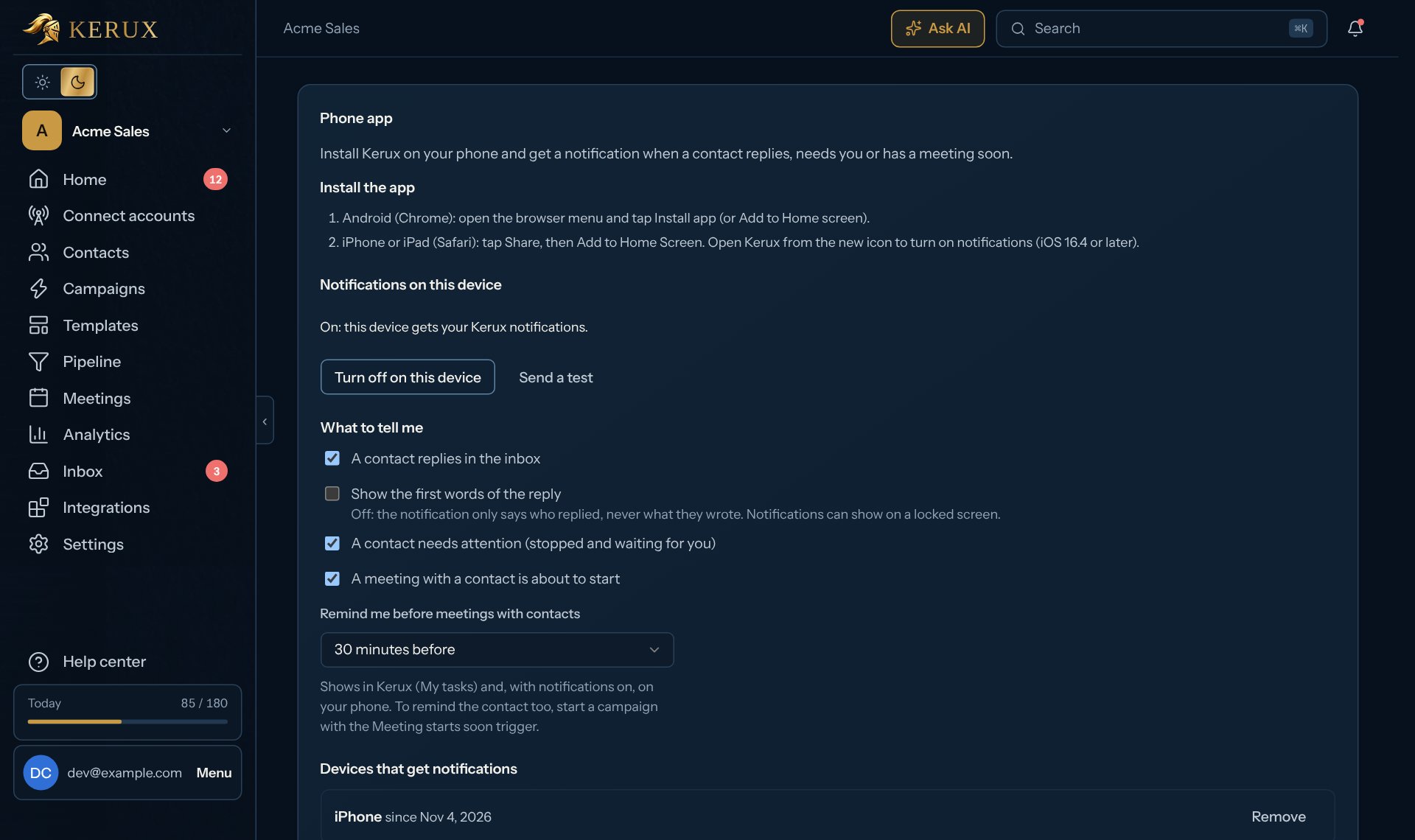
Your privacy. A reply notification only says who replied, never what they wrote, unless you tick Show the first words of the reply (then up to 80 characters). Notifications can show on a locked screen, so keep that off on a phone other people see. Kerux keeps nothing on the phone itself: every screen loads fresh from Kerux.
Meeting reminders need a connected calendar or booking tool, and booked-meeting tracking is part of Pro and Agency (and the free trial); see Meetings booked by contacts. Remind me before meetings with contacts also adds the reminder to My tasks in Kerux, with or without notifications. Set it to Off to stop it. To remind the contact before the meeting (an email, a WhatsApp message or a LinkedIn message), see Remind the contact before the meeting.
Devices
Devices that get notifications lists every phone and browser where you turned them on. Remove stops one. Signing out of Kerux on a device stops its notifications too, and Sign out everywhere stops them on every device. If someone else signs in on the same phone and turns notifications on, only they get them there from then on.If nothing arrives
- Notifications are blocked for Kerux in this browser’s settings: allow them in the phone’s settings (iPhone: Settings > Notifications > Kerux; Android: long-press the Kerux icon, App info > Notifications), then come back.
- On iPhone and iPad, add Kerux to your Home Screen first: notifications only work from the installed icon.
- A device the phone’s push service reports as gone (the app was removed, notifications turned off) leaves the list on its own.