

The Contacts tab
A campaign has five tabs: Builder, Contacts, Triggers, Logs and Settings. A campaign always opens on Builder; click Contacts to see how it’s going. The Contacts tab shows its results (acceptance rate, reply rate, messages sent, A/B test results, suggestions, and how many contacts are in progress, need attention, finished or left) and lists everyone in the campaign with their step (“step 2 of 5”), status, reason and next action.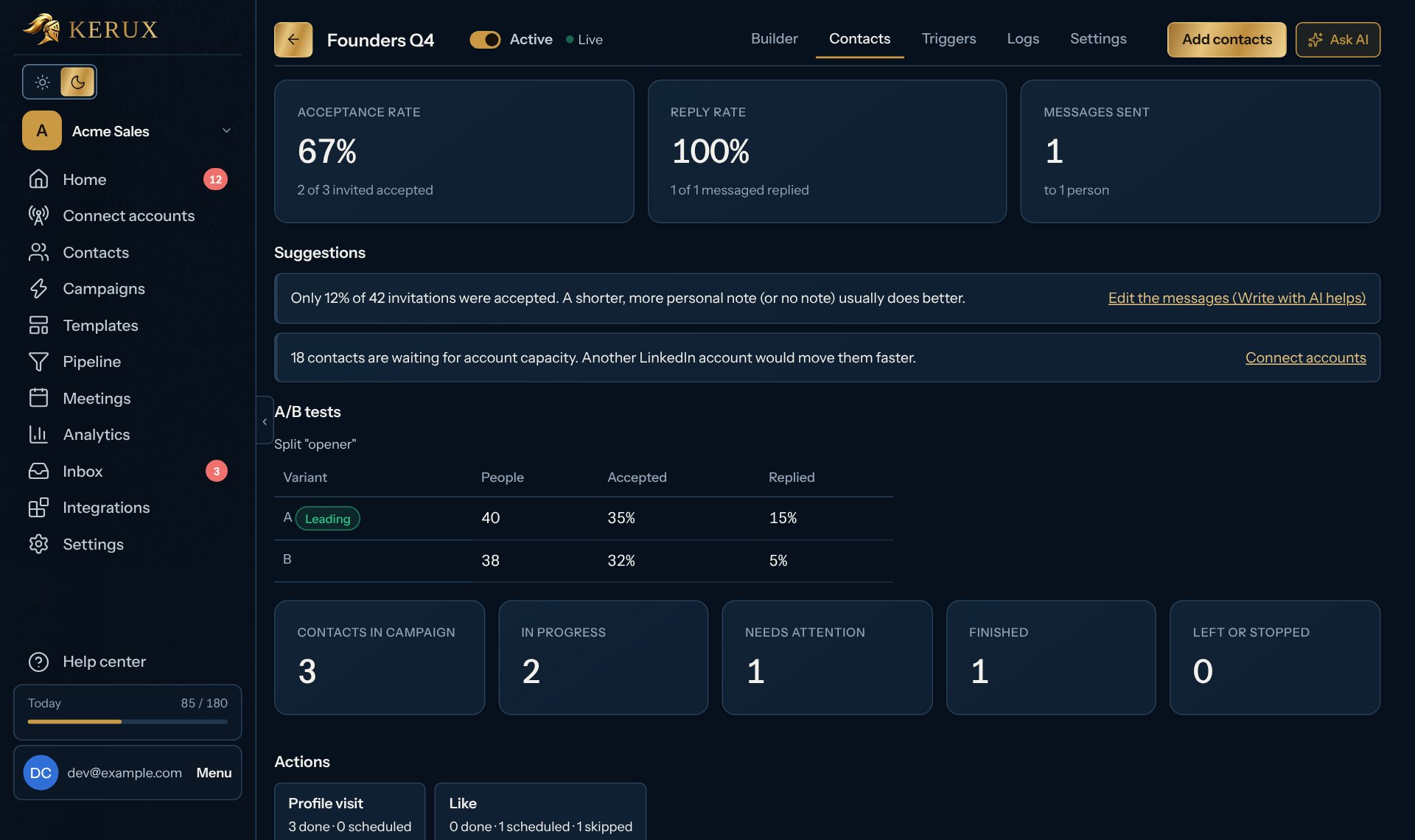
- Push now: ends a pause and sends the queued action at the next free slot (the account’s limits still apply).
- Start over: runs the contact again from the start. LinkedIn steps already done are not repeated.
- Remove from campaign: nothing more is sent to them.
A contact’s journey
Click a contact to see their journey: the path they took drawn over the campaign, one sentence per step, and where and why they stopped. A Send email step also says how many times the email was opened and which links were clicked (see Email opens and clicks). While a contact waits on a step that checks an app until it’s ready (Poll until, or a Sendspark video), the step says when Kerux last checked, when the next check is (for example “next check in 1 minute”), which check it is (“check 3 of 60, every 2 min”) and when it stops trying if it isn’t ready.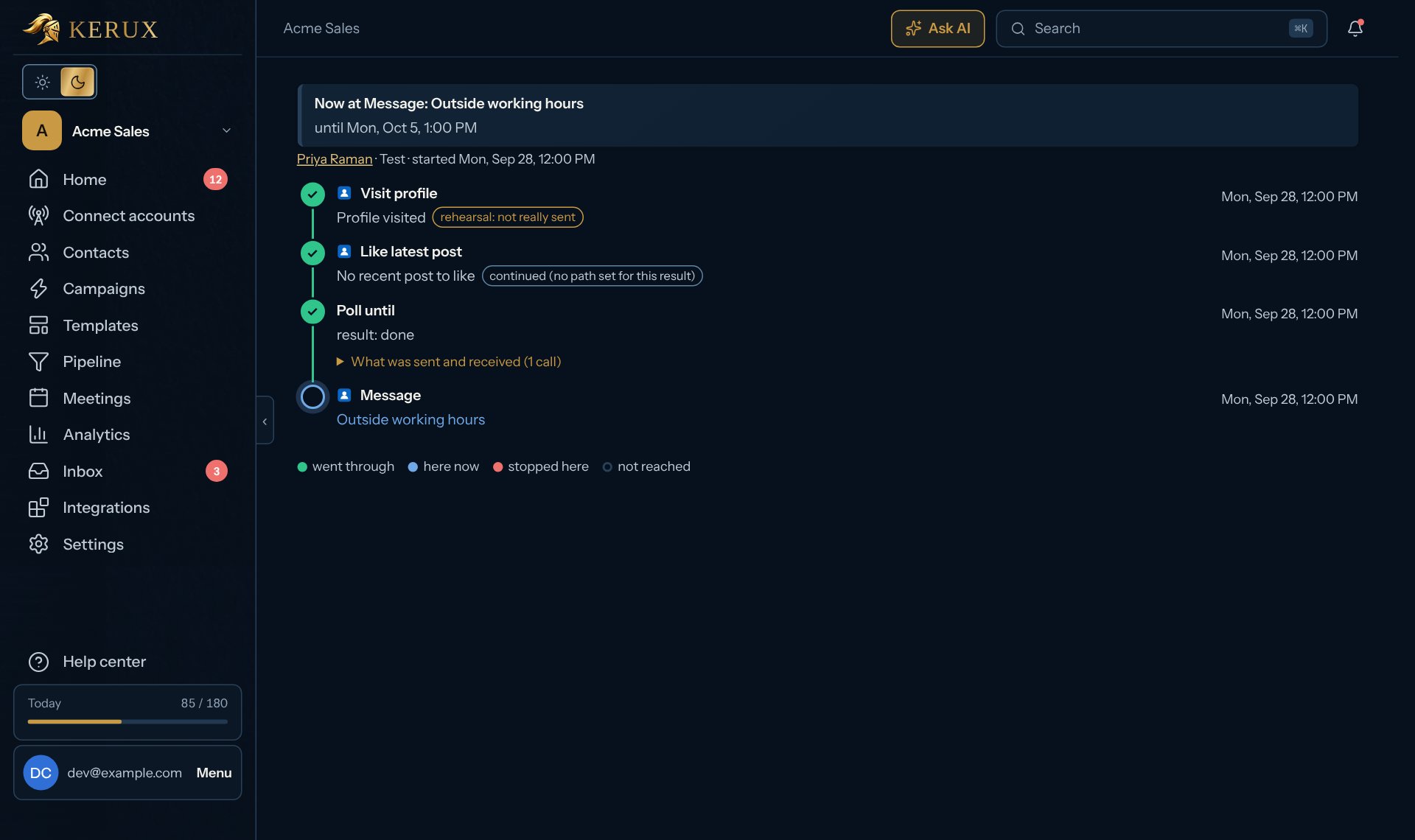
Fix stopped contacts right from the builder
When contacts stop on a step, the step’s card and its panel say how many in red, for example 1 need attention, and one yellow banner on top of the campaign says where and why in one sentence: “1 contact is waiting at Slack: its LinkedIn URL is empty and the message has no fallback”. When there are several problems, the banner names the biggest one and says how many more there are. Close it with the x on its right: it stays closed for your whole team (also after a reload) until something changes, for example more contacts stop or a new problem appears. Click Fix now in the banner, or the red need attention on a card or in the panel header. A small window opens over the campaign (a sheet from the bottom on a phone) with each stopped contact on that step (from the banner, when the problems are on several steps, the contacts of every step): name, the app or step, the exact reason in plain words (“The message uses Contact LinkedIn URL, and this contact doesn’t have one”), and only the fixes that apply: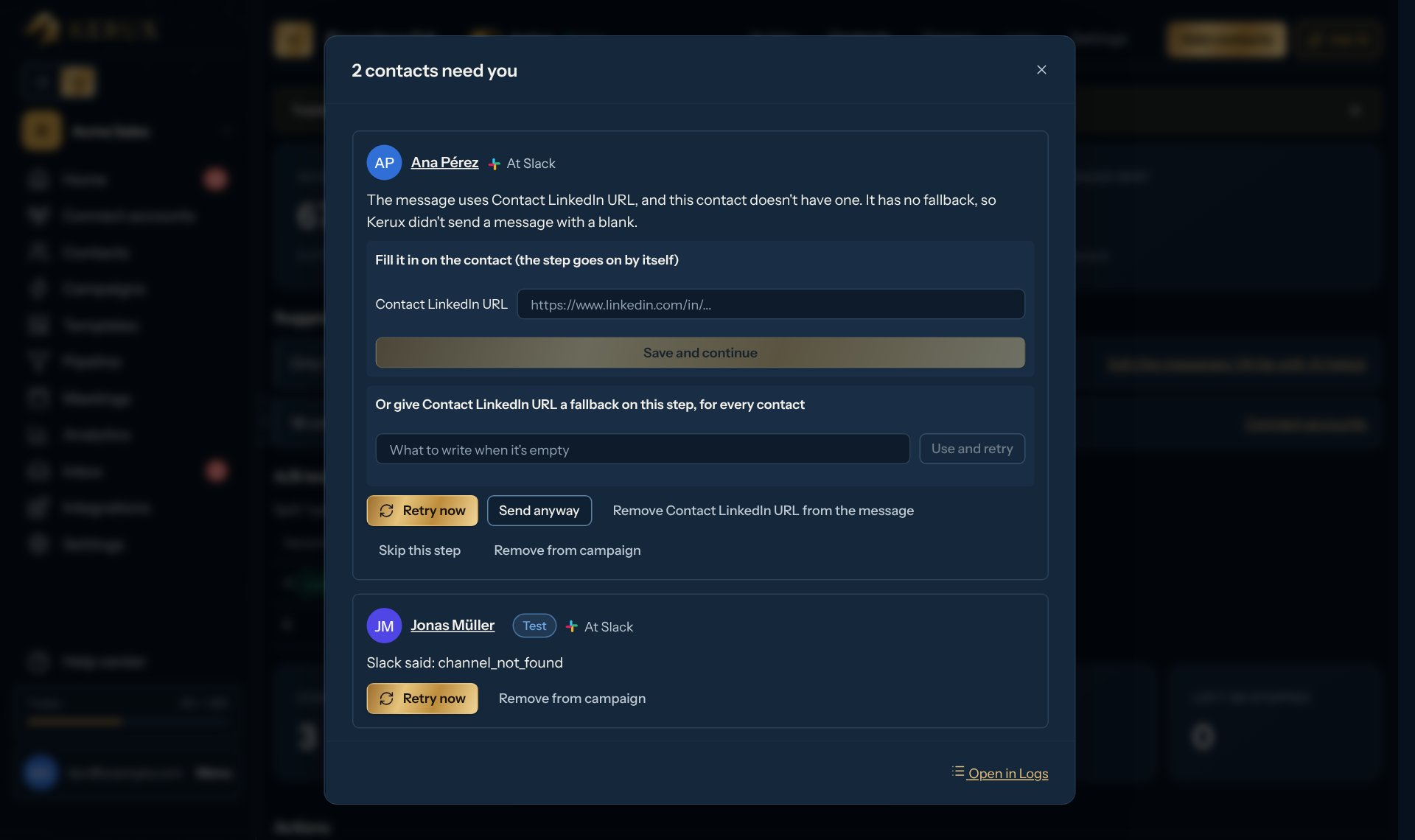
- Fill it in on the contact (the step goes on by itself): type the value and click Save and continue.
- Or give … a fallback on this step, for every contact (for example “Or give Last name a fallback on this step, for every contact”): type what to write when it’s empty and click Use and retry. It’s saved on the step for every contact (and goes live like any edit), and every contact paused on that step for it goes on now.
- Remove … from the message (for example Remove Last name from the message): takes the variable out of the step for every contact and sends the paused ones (Kerux asks first).
- Send anyway: sends this one with the value left empty.
- Skip this step: the contact moves on without it.
- Retry now: runs the step again with the step as it is now. If the cause is still there, the contact stops again with the same reason.
- Resume: for a contact you paused yourself.
- Remove from campaign: nothing more is sent to them (Kerux asks first; nothing already sent is undone).
- Record consent: for a contact waiting at a Send SMS or Send WhatsApp step because they have no recorded consent; it opens the contact’s Consent and contact. Open Sending rules: for an email waiting for your postal address (or a text waiting for your company name). See Sending rules and consent.
- For other reasons: Decide in Tasks (a LinkedIn message, email, WhatsApp message or text message Kerux couldn’t confirm went out: it never retries those by itself), Reconnect the account, Fix the connection (Slack, Sendspark, Twilio…) or Open the step.
When a contact stops: Kerux AI shows the fix
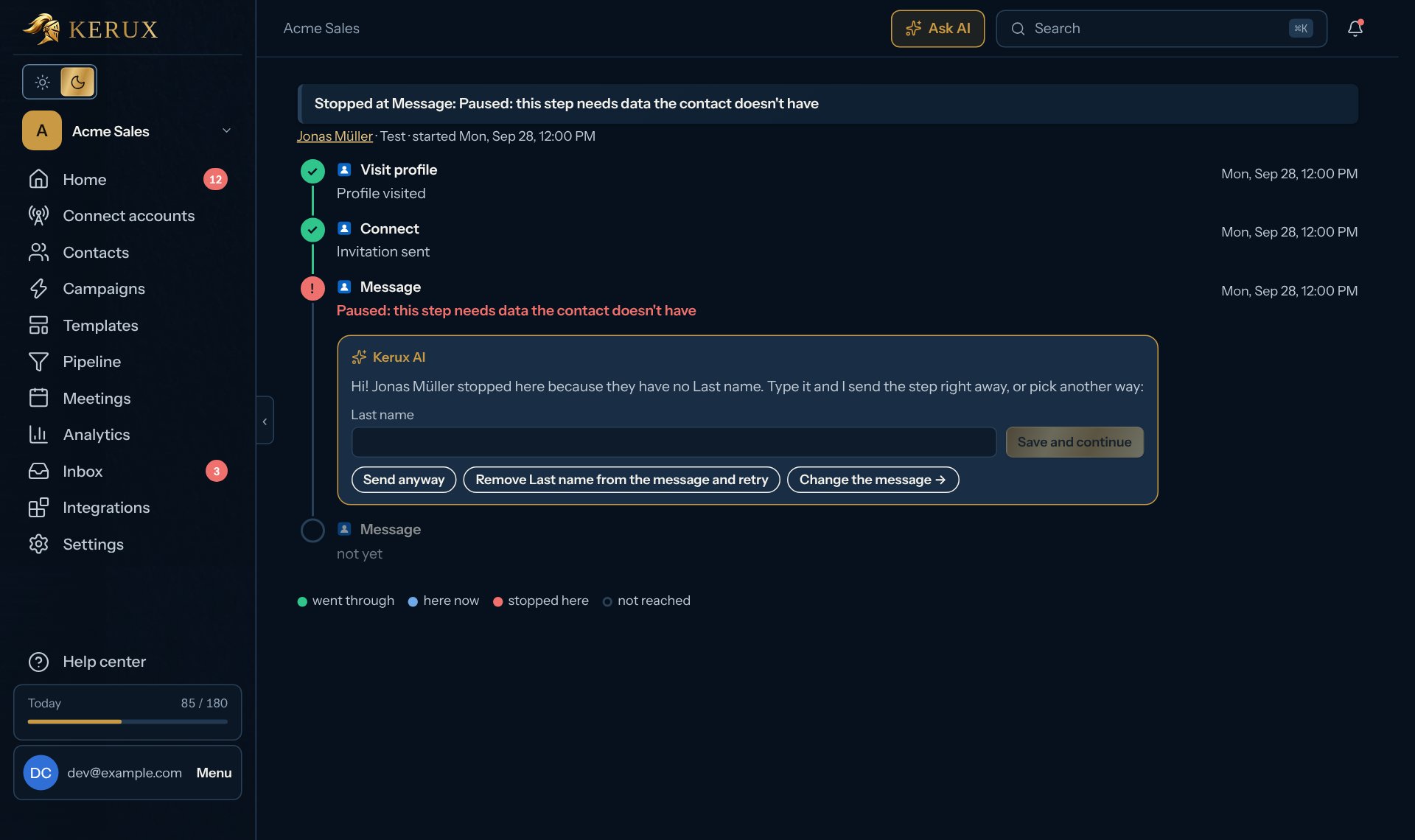
To find the contacts that need you, click the Needs attention number in the campaign’s Contacts tab (or Fix next to the campaign under Needs your attention on Home). Kerux lists those contacts and opens the first one’s journey. On the step where the contact stopped, a small Kerux AI box says what happened in one sentence and offers the fix as buttons. For example:- A contact field is missing: type the value and click Save and continue, click Send anyway, or remove that variable from the message and retry for every contact paused on it. See Variables.
- The LinkedIn account can’t send: Open Connect accounts to reconnect or resume it. The contact goes on by itself.
- Kerux couldn’t confirm a send went out: Decide what to do. Kerux never guesses, so nothing is sent twice.
- A step failed: Try again.
Tasks: everything that needs you
Home > Tasks (or the bell at the top right) collects what needs a person, and Home shows the first few under Your tasks, each with one button (see Find your way around): contacts stuck on the same problem (grouped, with Retry all), sends LinkedIn didn’t confirm (you decide each one under Unconfirmed sends: a group of these has no Retry all), and data from other apps that couldn’t be matched to a contact.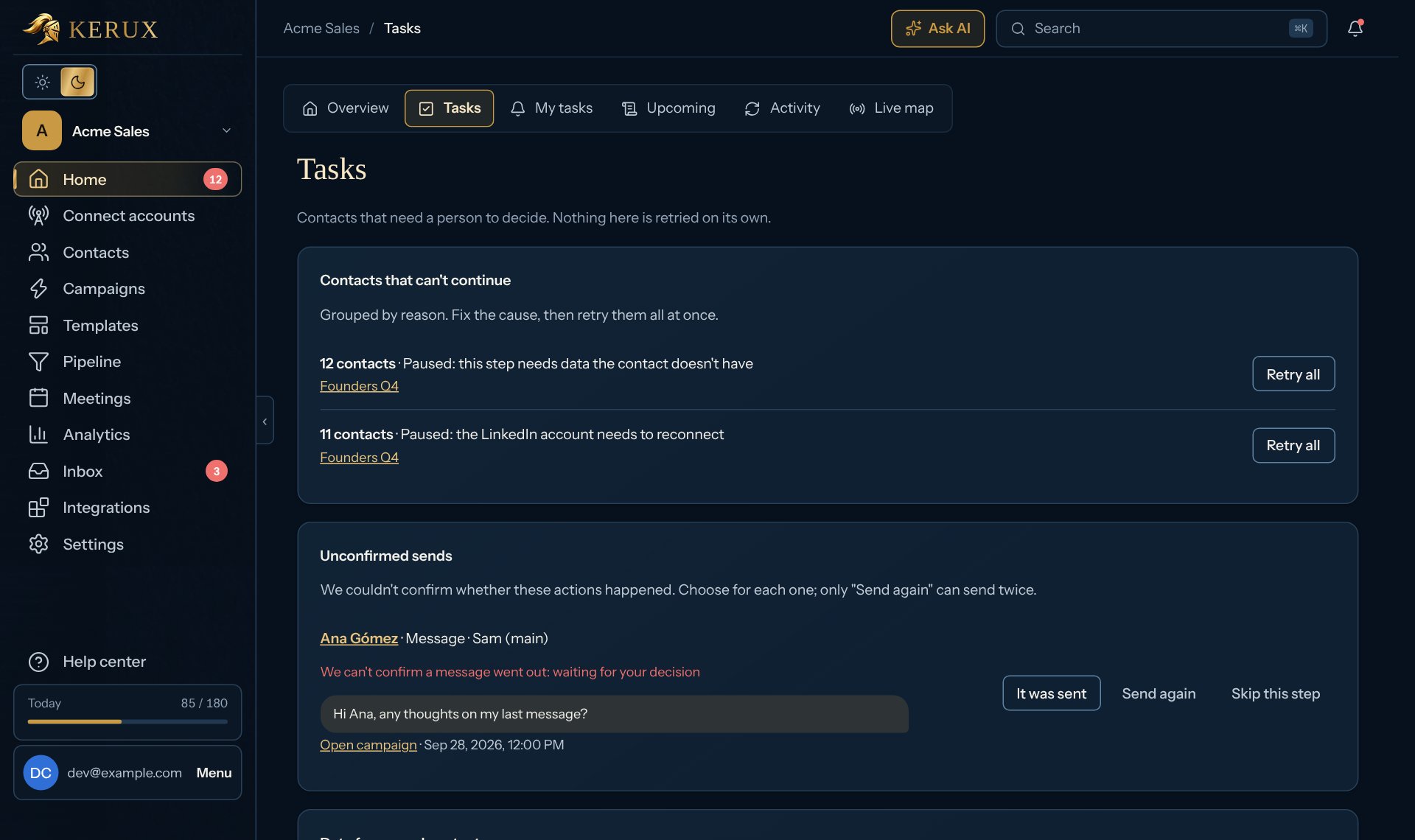
More places to watch
-
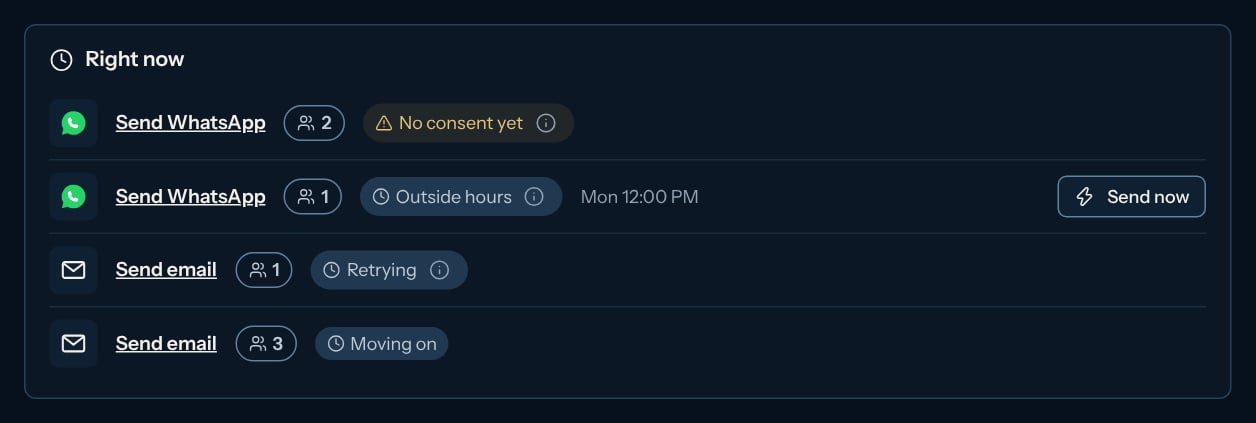
Logs tab of a campaign: on top, Right now shows one row per step and reason with contacts on it: the step, how many, a short reason (for example Outside hours, No consent yet or Retrying, with the full explanation in its (i)) and when it goes on. Contacts that need you come first; while the campaign is paused, every row says Campaign paused. It updates by itself every few seconds. Click the step to open it. When they only wait for the sending hours or a planned wait, Send now sends them right away: click it, then Send outside hours (or Skip the wait for a planned wait), and Kerux says how many are going out, for example 3 going out now; consent, the do-not-contact list, a text’s legal hours and every limit still apply. Below it, everything this campaign did, newest first; Show older at the bottom loads the entries before (if it says Couldn’t load older entries. Try again., click it again). When a contact has to wait on a LinkedIn, WhatsApp, text or email step (outside the sending hours, an account that is paused or needs attention, a daily limit, consent not recorded yet…), the history shows On hold with the reason and when it goes on, once per reason. Each entry names the app behind the step and what it did, for example Slack: Message sent with the Slack mark, or Slack: the call failed with Slack’s answer (“Slack said: channel_not_found”). A contact waiting for data says which value is missing, with Fix to open the fix window. Runs from Test on one contact carry a Test badge. Filter by Step and Status (Done, Info, Warning, Problem, Real activity only or Test runs only). Click the arrow on the right of an entry to open it in place: what was sent and what came back (keys and tokens hidden), how long it took, how many tries, and Retry (when the contact is stopped), Open contact and Open step. Click the entry’s text to see where that contact is.
- A contact’s page (Contacts, then the contact): its History says what happened and why. A row that waits says the reason and when it goes on (for example On hold: Outside working hours. Goes on Wed 2:00 PM). Left the campaign says why (they replied, a person removed them, a rule, the do-not-contact list, they unsubscribed). Not added to the campaign says why too: already in it, was in it before, in another campaign right now, on the do-not-contact list, or the campaign isn’t launched or is archived. The same row is written at most once a day for the same reason.
- A contact’s journey (click a contact in a campaign): the line on top says where it is and why. While the campaign is paused or archived it says so, whatever the step was waiting for.
- Home > Upcoming: the next actions each account will take, with times.
- Home > Activity: a live feed of what happens.
- Home > Live map: every running campaign with contacts moving through the steps.
- Analytics: results per campaign and per LinkedIn account, and per teammate (Team, for owners and admins), including the share of messages LinkedIn says were seen (see Seen, Delivered and Not seen yet) and, once you send campaign emails, the share opened and clicked (see Email opens and clicks). Once you send InMails, InMails sent shows them apart (they also count in messages), with their reply rate and how many went free (see InMail credits and Open Profile).