

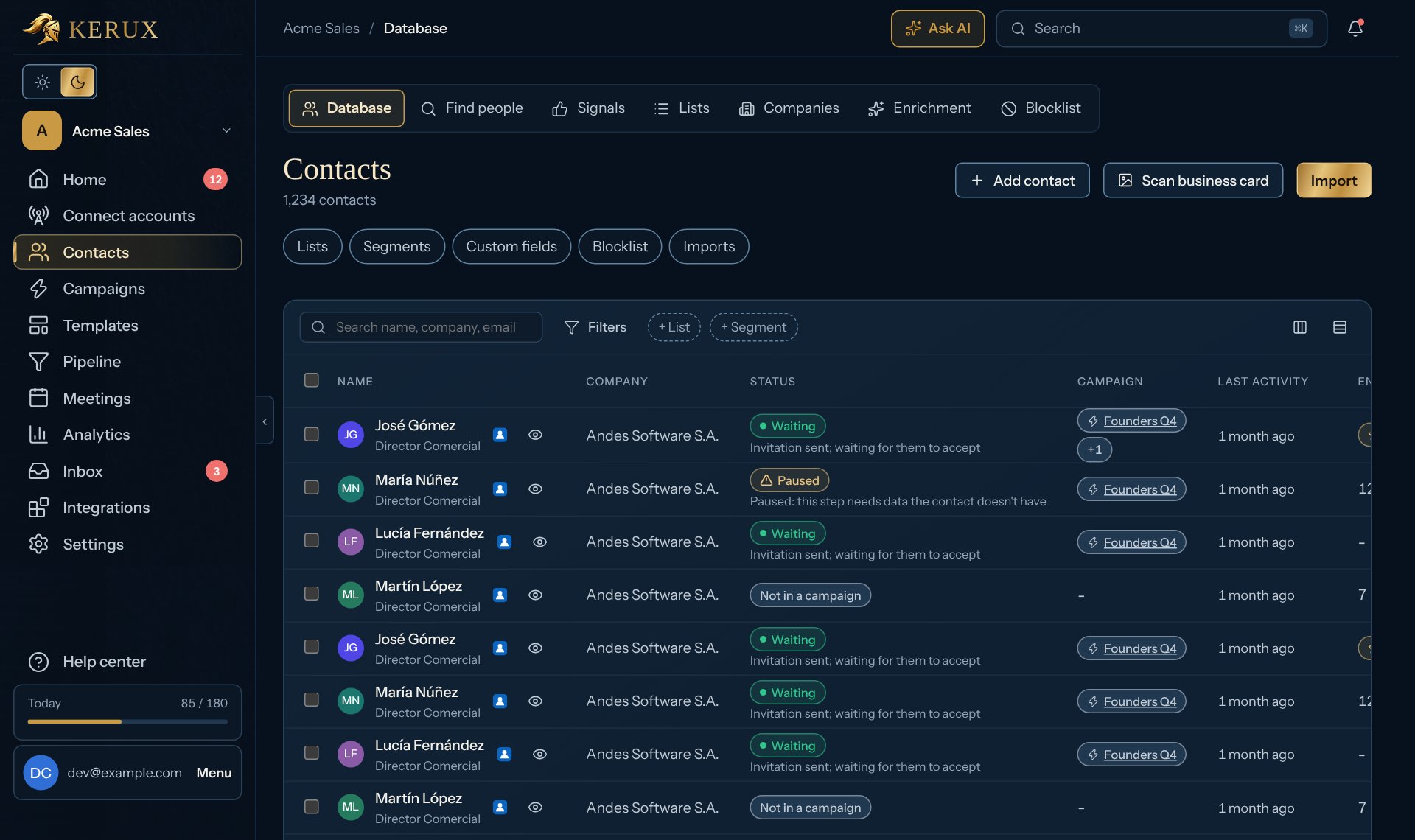
Add a contact by hand
- Open Contacts and click Add contact (next to Import).
- Paste the person’s LinkedIn profile URL (the only field you must fill).
- Add what you know: First name, Last name, Company, Job title, Email and Tags (separate them with commas).
- Click Save.
Find contacts
- Search by name, and filter by job title, location, company, source, email, phone, “in a running campaign”, date added and No activity for (30 days to a year). Filters stay in the page address, so you can bookmark or share them.
- Click Save as segment to keep a filter for your whole team: a smart segment is always up to date and can be a campaign’s audience or get a broadcast. A view keeps filters and columns in your own browser only.
- Click the eye next to a name for a quick view, or the name for the full contact page (see The contact page). The LinkedIn mark next to the name opens their LinkedIn profile in a new tab.
The contact page
Click a name in Contacts to open the contact’s page. Their name shows in the top bar, and Enrich is at the end of the Contacts tabs at the top.- Details (the column on the side): the LinkedIn profile and company, their tags (type a tag name and press Enter or click Add tag; the x on a tag removes it), the lists they are in, then First name, Last name, Email, Phone, Company, Job title, LinkedIn headline, Address, City, Country, Postal code and your Custom fields. Change what you need and click Save. The + next to Custom fields opens Contacts > Custom fields, to add a field for every contact. When LinkedIn shows a location, it appears as a note (On LinkedIn: …).
- The main column: their campaigns, where they came from, the pipeline stage, the engagement score, calls, Consent and contact (see Sending rules and consent), the team’s notes and tasks, and the History of everything that happened.
Act on many contacts
Tick contacts to open the actions bar: Add to list…, Add tag, Enrich, They agreed to… (texts, WhatsApp or both: records their consent in one click; contacts without a phone are left as they are) or Delete. When a person asks you to delete their data, use Delete on request (GDPR) on their page instead: it deletes everything Kerux holds about them, and they are never added to a campaign again (see Deletion requests).Lists
Contacts > Lists: every import creates a list, and you can create, rename or delete lists. Deleting a list never deletes its contacts. Use a list when you launch a campaign.Custom fields
Extra data for your contacts (deal size, pain point…). Create them in Contacts > Custom fields (or with the + next to Custom fields on a contact page); imports can create them too. Use them in messages as{{contact.custom.field_name}}. See every variable in the Variables reference.
Blocklist
Contacts > Blocklist: people (LinkedIn URL), companies and email domains that are never contacted. Imports skip them and say why, and campaigns never reach them. People who reply “stop writing to me” are added automatically. The do-not-contact list in Settings > Sending rules is different: it holds emails and phones (unsubscribes, STOP texts, opt-out replies, deletion requests, entries your team added), for one channel or for every channel. Contacts on it can still be imported. An entry for every channel works like Do not contact: contacts with that email or phone leave every running campaign at once, no campaign takes them again, and every step skips them, LinkedIn included. An entry for one channel makes that channel’s steps skip them; the rest of the campaign goes on. See Sending rules and consent.Common problems
A contact is missing from my campaign
A contact is missing from my campaign
Check the blocklist, and the campaign’s Duplicates setting (When a contact is already in another campaign, in the campaign’s Settings tab): with Skip them, contacts active in another campaign are skipped.